Careers Page
Menu: Settings → Careers Page · Publishing controlled per requisition
Your Careers Page is a public, branded careers site that lists your live
roles at your own web address (for example yourcompany.jobs.goverse.ai).
Candidates browse your openings, read the full job description, and apply
directly by uploading their CV — and each application lands straight on the
right requisition inside GoVerse, ready to review.
What it's for
- Give candidates one place to see every open role — on a page that looks like your brand, not a generic job board.
- Collect applications without extra tools — applicants upload a CV and their details, and they become an applicant on the matching requisition.
- Stay on-brand automatically — match your website's colours and fonts, or fine-tune them yourself.
- Control what's shown — choose which job details (salary, benefits, skills, etc.) appear publicly.
How to get there
Open Settings and choose Careers Page. The setup is organised into three tabs: Brand & Theme, Page & Details, and Job Fields.
Brand & Theme
This is where your careers page gets its look. You have two ways to style it.
Match my brand (AI)
Paste your company website and select Match. An AI agent studies your site and restyles your careers page to match — pulling your primary colour, text and background colours, typography, and corner radius — then shows you a side-by-side preview of your website next to your careers page. If you like it, select Apply this style.
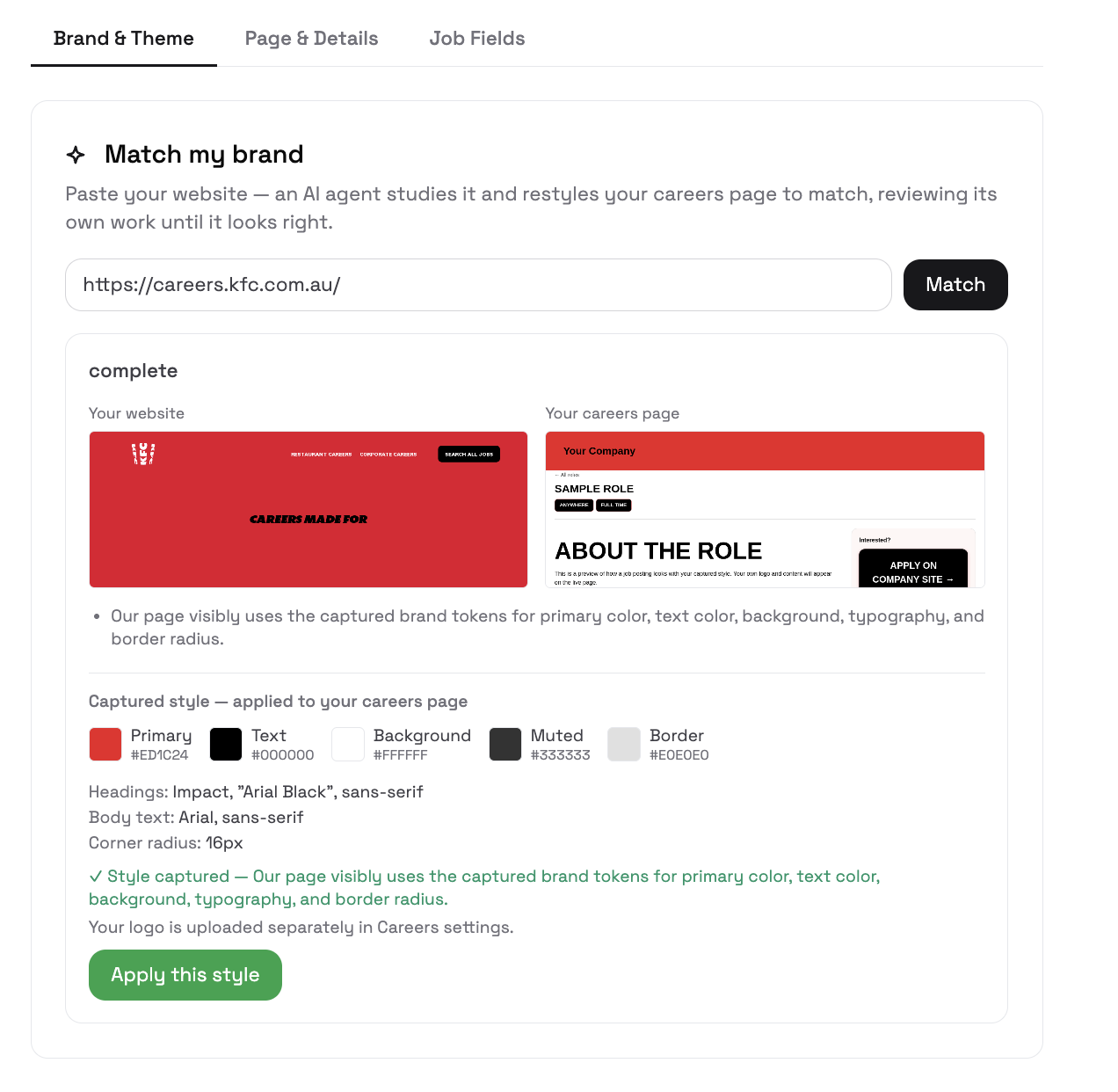
Your logo is separate
Brand matching captures colours and fonts. Your logo is uploaded separately on the Page & Details tab.
Theme (manual)
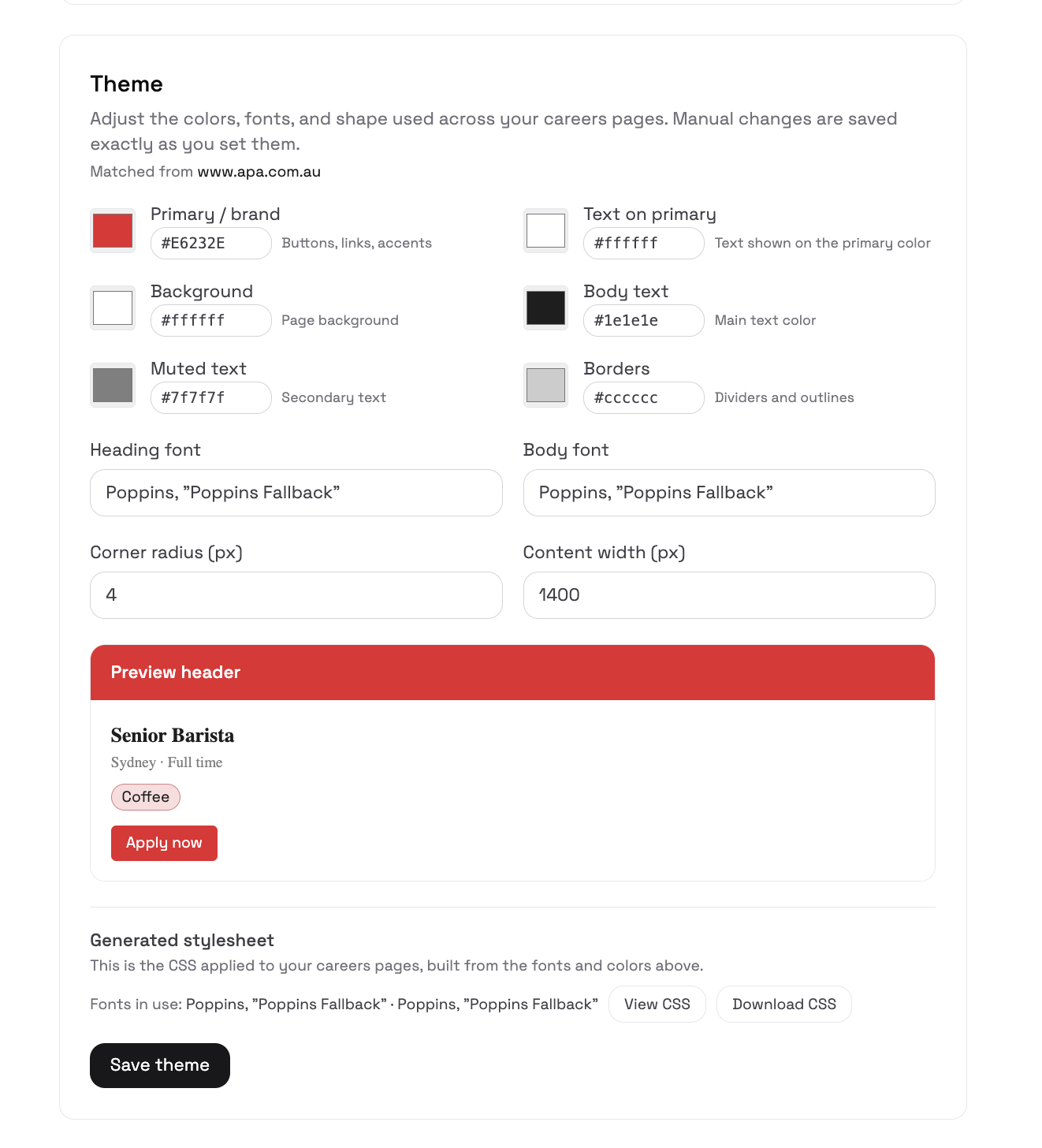
Prefer to set things yourself? The Theme editor lets you adjust every value by hand — primary/brand colour, text on primary, background, body text, muted text, borders, heading and body fonts, corner radius, and content width — with a live preview of a sample job card. You can also View CSS or Download CSS of the generated stylesheet, then Save theme. Manual changes are saved exactly as you set them.
Page & Details
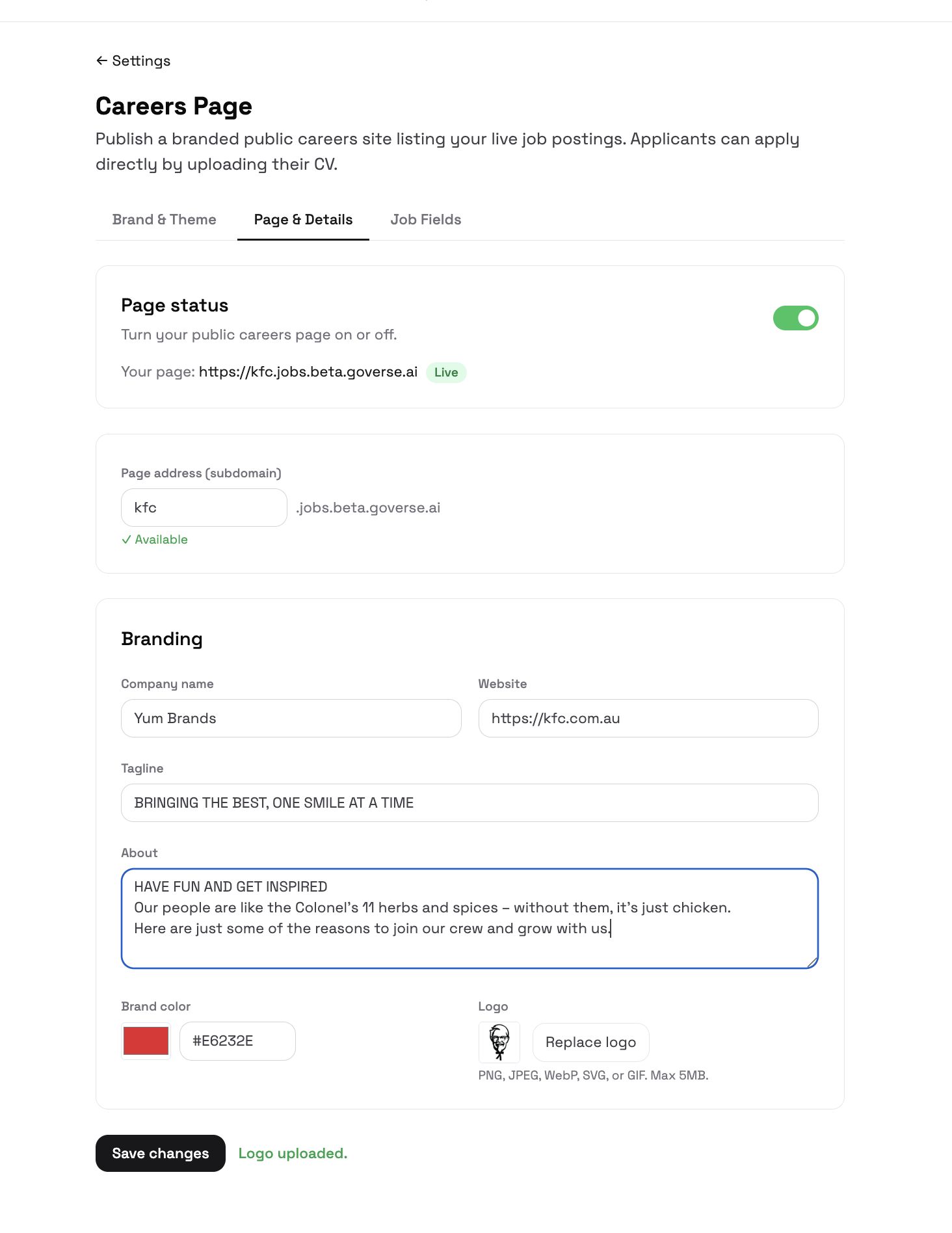
This tab controls whether your page is live, its web address, and your company branding.
- Page status — a switch to turn your public careers page on or off. When it's on, your page address is shown with a Live badge.
- Page address (subdomain) — choose the label for your careers site (e.g.
yourcompany), which becomesyourcompany.jobs.goverse.ai. GoVerse checks it's available as you type. - Branding — your company name, website, a short tagline, an about section, your brand colour, and your logo (PNG, JPEG, WebP, SVG, or GIF, up to 5 MB).
Select Save changes when you're done.
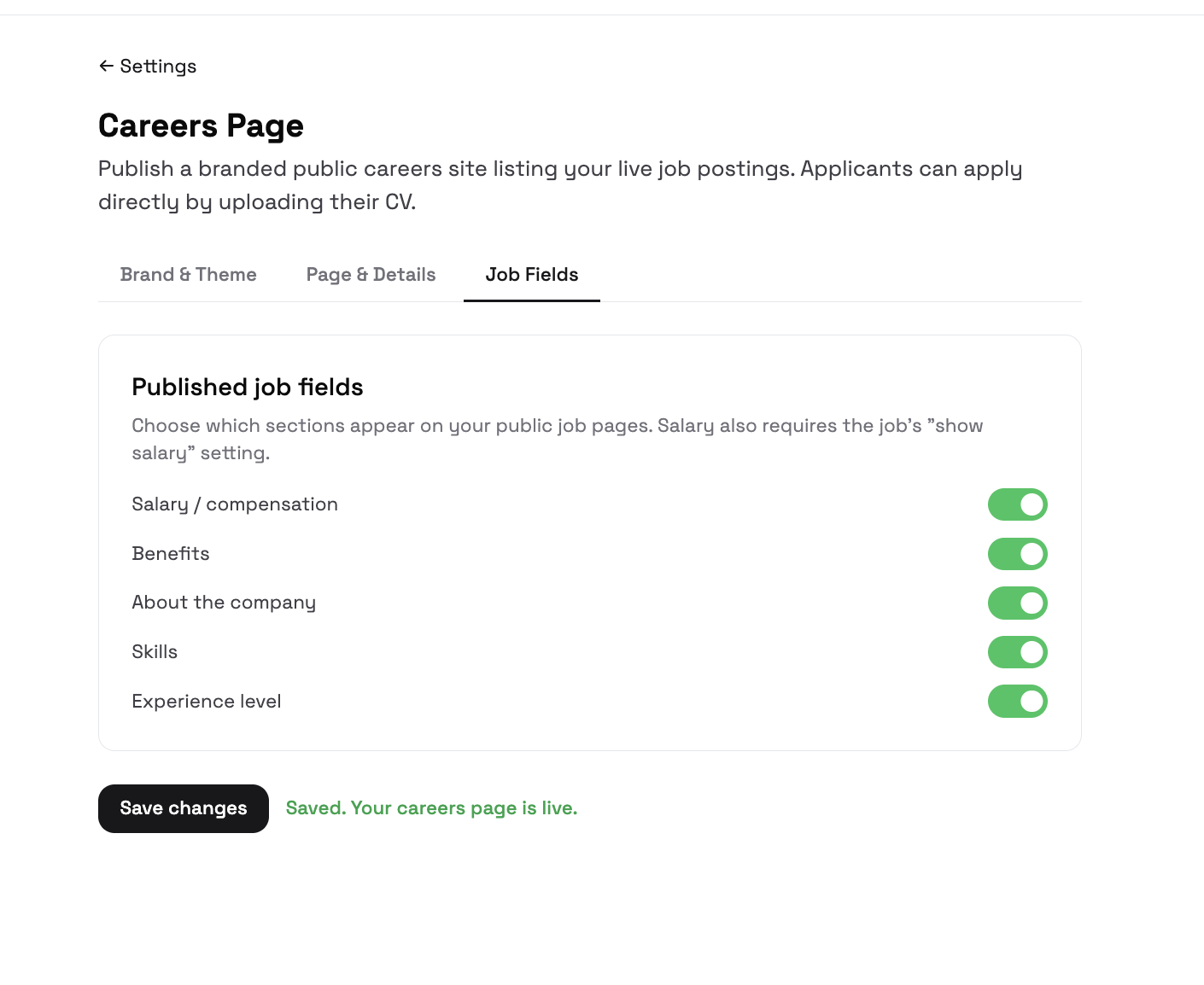
Job Fields
Choose which sections appear on your public job pages. Toggle any of:
- Salary / compensation (also requires the individual job's "show salary" setting)
- Benefits
- About the company
- Skills
- Experience level
Select Save changes — you'll see "Saved. Your careers page is live."
Publishing a role to your careers page
Turning the careers page on doesn't automatically expose every requisition. Each role is published individually from its requisition, so you stay in control of what's public. From a requisition you move a posting through:
Draft → Preview → Approve → Live
- Preview lets you see exactly how the role will look on the public page (private and not indexed by search engines) before anyone else can.
- Approve / Publish makes the role appear on your live careers site.
- You can unpublish a role at any time to remove it from the public page.
What candidates see
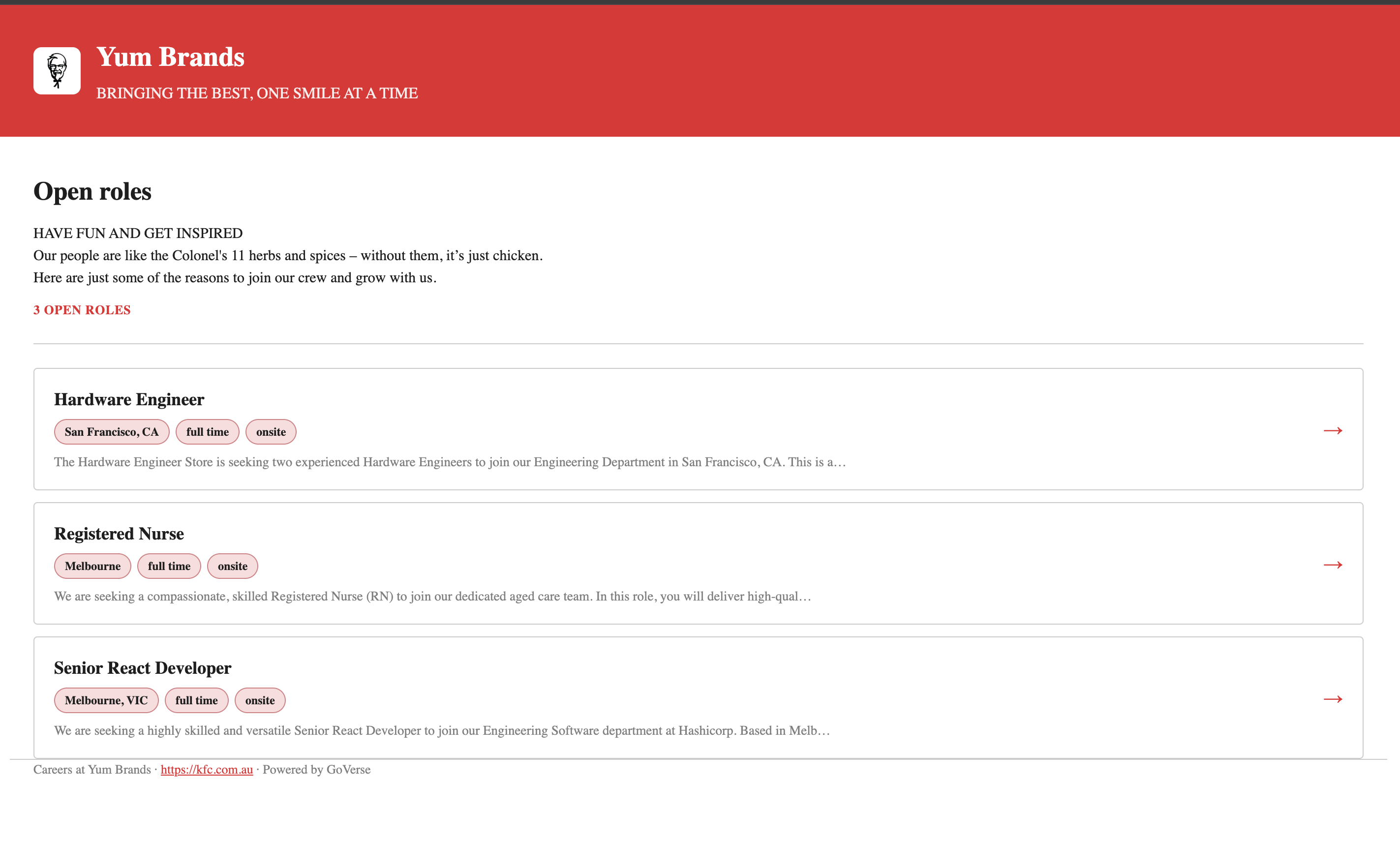
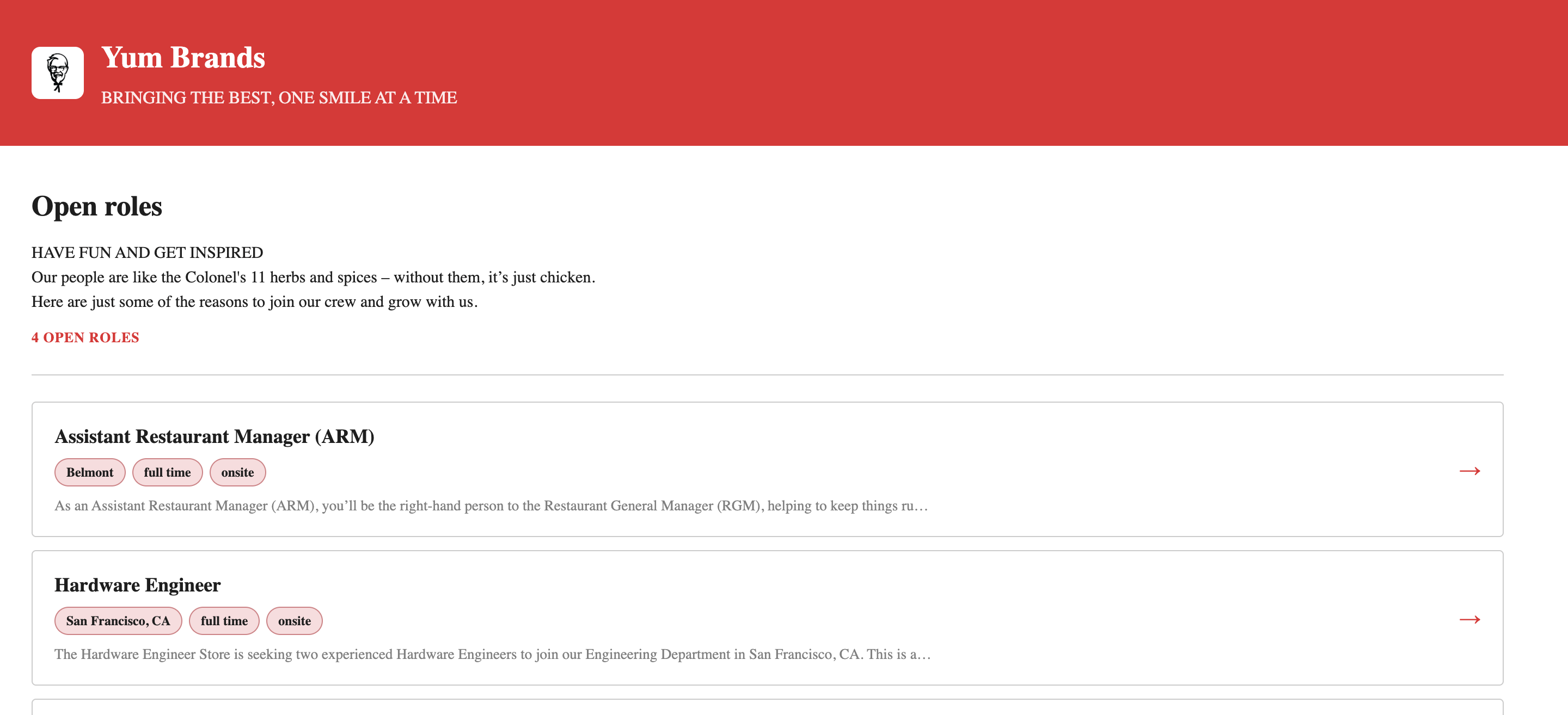
Visitors land on your branded Open roles page — your logo, colours, tagline, and about text, followed by a list of live roles with location and work-type tags.
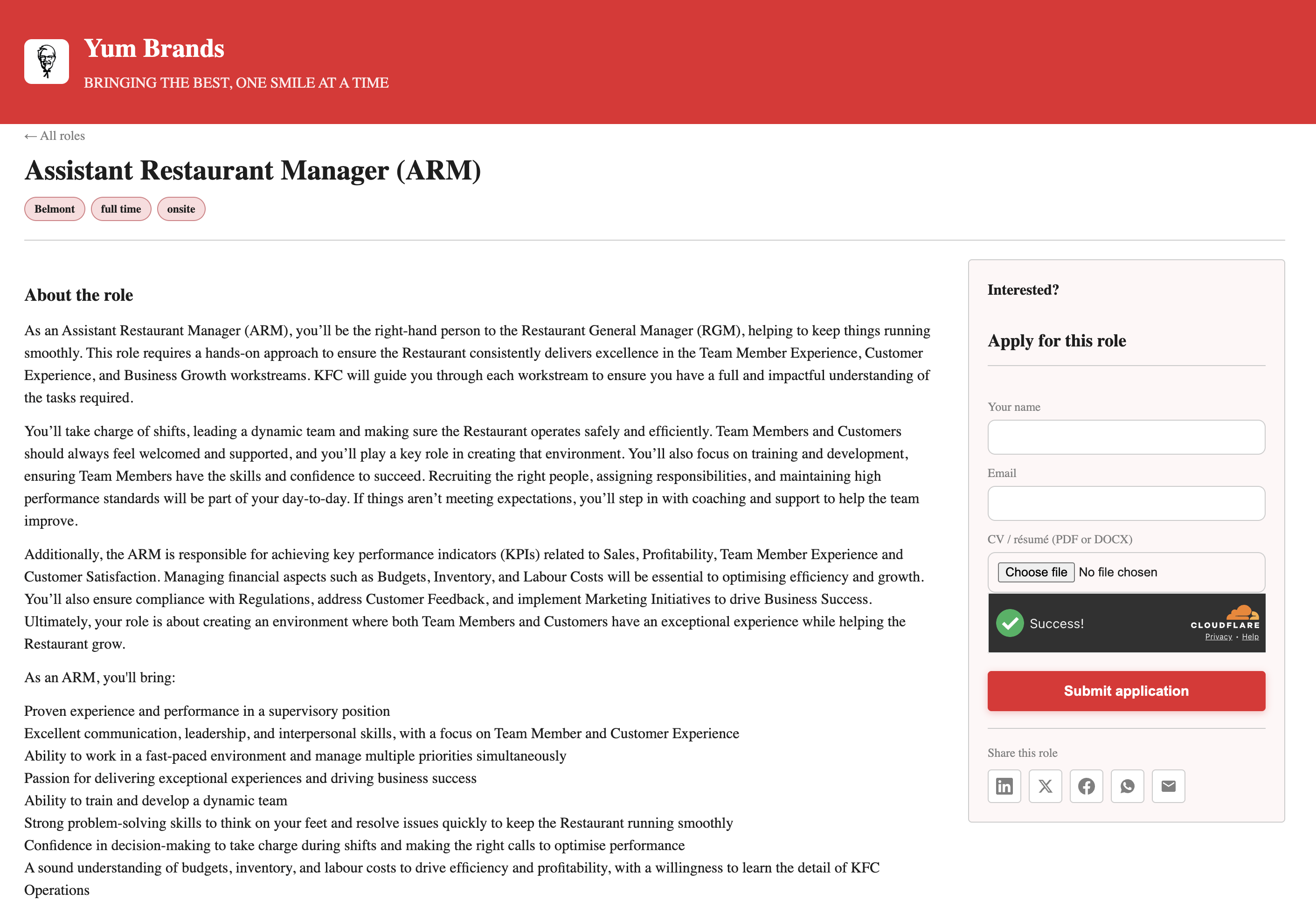
Selecting a role opens its full detail page with an Apply for this role form alongside it. The candidate enters their name and email, uploads their CV / résumé (PDF or DOCX), and submits. A spam check (Cloudflare) protects the form, and there are share buttons so the role can be passed around. On submit, the application is created on the matching requisition in GoVerse.
Tips
- Try "Match my brand" first. It gets you a close-to-final look in one step; fine-tune in the Theme editor afterwards if needed.
- Preview before you publish. Use a role's Preview to check the layout with your real content before it goes live.
- Salary needs two switches. To show pay, enable Salary / compensation in Job Fields and turn on "show salary" on the individual job.
- Applications flow straight in. Every CV uploaded on the careers page becomes an applicant on the right requisition — no import step.
Related
- Requisitions — where published roles live and where applications land.
- Settings — where you open the Careers Page setup.