Talent Search
Menu: Talent Search · Requires a plan with advanced search (Premium+)
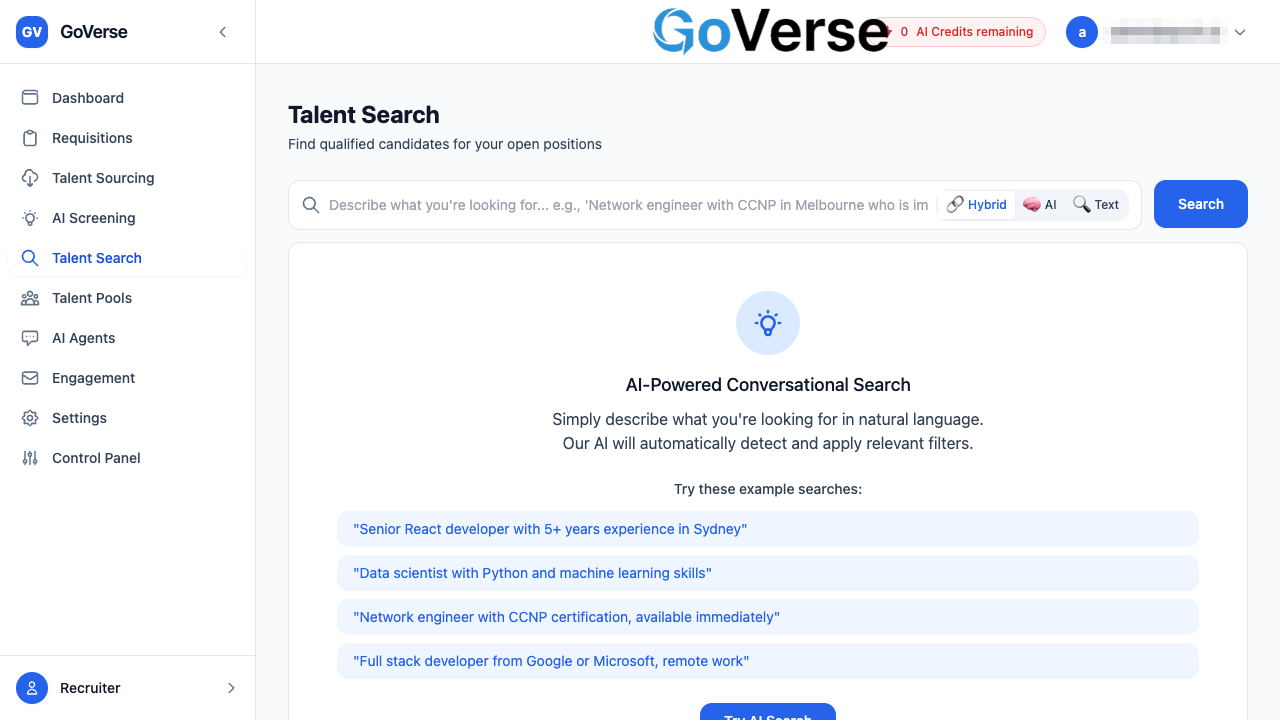
Talent Search lets you find candidates in your GoVerse talent database by simply describing who you're looking for in plain English. You don't build a query out of boxes and drop-downs — you type a sentence like you'd say it to a colleague, and GoVerse works out the roles, skills, locations and experience you mean, finds matching people, and ranks them by how well they fit.
What it's for
Use Talent Search when you want to discover people already in your database for an open role — not to review one specific applicant, but to surface the best matches from everyone you have on file.
Typical uses:
- Find candidates for a role you're about to open ("who do we already have?").
- Build a shortlist to add to a requisition or a talent pool.
- Start outreach by enrolling promising people into an email sequence.
How this is different from AI Screening
Talent Search finds and ranks people across your whole database from a plain-language description. AI Screening takes a specific set of candidates and scores them in depth against a role's criteria. Search first to build the list; screen later to go deep.
How to get there
Select Talent Search in the left-hand menu.
Don't see it?
Talent Search is part of GoVerse's advanced search capability and appears only on plans that include it (Premium and above). If the menu item isn't there, your plan doesn't currently include advanced search — contact your administrator.
Entering a natural-language query
The search bar sits across the top of the page. Type your request the way you'd describe the person out loud, then press Enter or click Search.
You can mention any mix of:
- Role or title — "senior React developer", "network engineer"
- Skills — "Python", "machine learning", "CCNP"
- Location — "in Melbourne", "Sydney", "remote"
- Experience — "5+ years"
- Availability — "available immediately"
- Company background — "from Google or Microsoft"
Example queries
Not sure how to phrase it? The landing page offers ready-made examples you can click to run instantly:
| Example query | What GoVerse picks up |
|---|---|
Senior React developer with 5+ years experience in Sydney |
Title, skill, experience, location |
Data scientist with Python and machine learning skills |
Title + two skills |
Network engineer with CCNP certification, available immediately |
Title, certification, availability |
Full stack developer from Google or Microsoft, remote work |
Title, company background, work mode |
Write it like a sentence
You don't need special syntax, quotes, or operators. A full, natural sentence such as "Network engineer with CCNP in Melbourne who is immediately available" works better than a list of disconnected words.
As-you-type suggestions
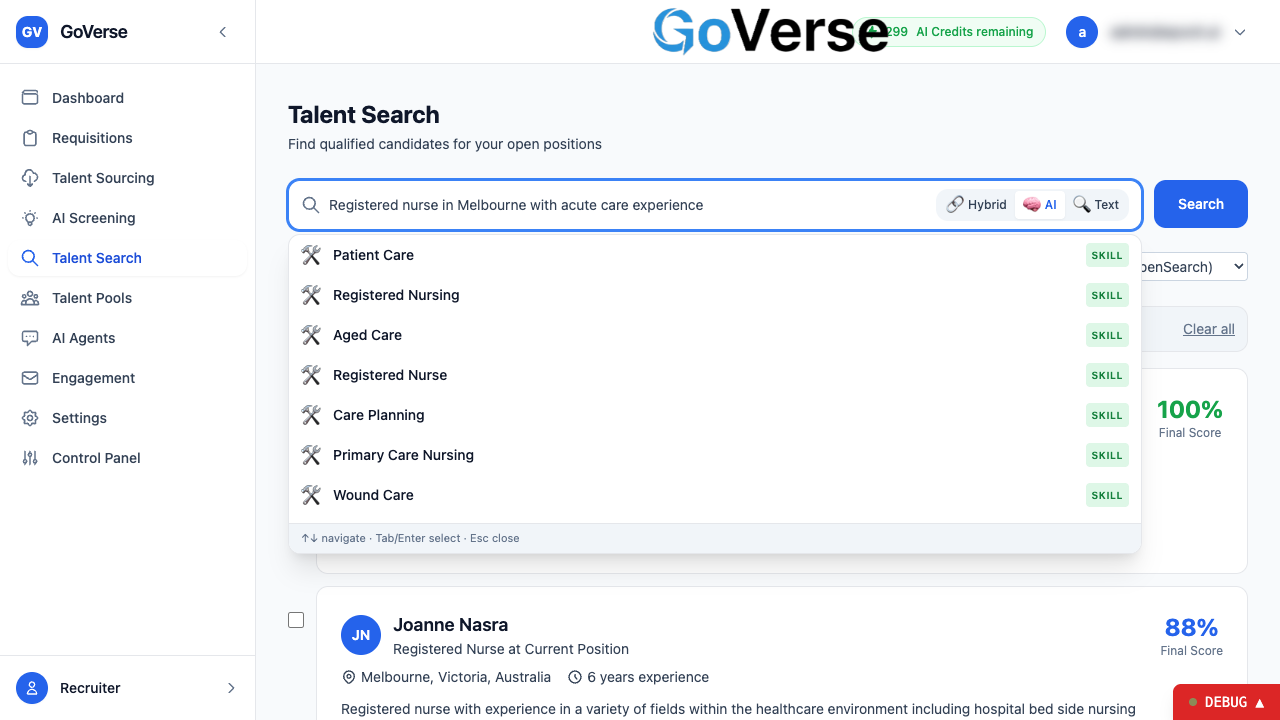
Once you've typed two or more letters, GoVerse offers autocomplete suggestions drawn from the skills, job titles and locations already in your database. Each suggestion is tagged so you know what it is:
| Tag | Meaning |
|---|---|
| 🛠️ Skill | A skill, tool, or certification |
| 👔 Title | A job title or role |
| 📍 Location | A city or region |
You can pick a suggestion with the mouse, or use the keyboard:
- Up / Down — move through the list
- Tab or Enter — select the highlighted suggestion
- Esc — close the list
Filters and refinements
GoVerse turns the important parts of your query into filter chips — small coloured tags that sit inside the search bar. This is how you refine a search: add or remove chips, and the results update to match.
When you pick an autocomplete suggestion, it becomes a chip:
- 🛠️ Skill chips are green
- 👔 Title chips are blue
- 📍 Location chips are purple
Working with chips:
- Add a chip by choosing an autocomplete suggestion.
- Remove a chip by clicking the ✕ on it — or press Backspace when the text box is empty to remove the last one.
- Free text you leave in the box is searched alongside your chips.
When one or more chips are active, a banner in the top-right reads "AI Search Intelligence Active — Automatically detected N filters from your search query", and a summary line above the results shows your query text plus how many filters are applied. Use Clear all there to reset the search.
Where did the filters come from?
GoVerse detects these criteria from your sentence automatically — that's the "AI Search Intelligence". You're always in control: any chip you don't want, just remove.
Choosing a search mode
At the right end of the search bar is a three-way toggle that controls how GoVerse matches candidates. Hybrid is the default and is right for almost everyone.
Combines exact word matching with meaning-based matching for the best all-round results. Start here.
Meaning-based matching. Finds relevant candidates even when their profile uses different words than your query (for example, matching "front-end engineer" to a query for "React developer"). Good when you care about the kind of person more than exact wording.
Plain keyword matching. Returns candidates whose profiles contain the exact words you typed. Good when you're looking for a specific certification name or an exact term.
Switching modes re-runs your current search automatically.
Understanding the ranked results
Each result is a candidate card. Cards are ordered by how well GoVerse thinks the person fits your search, best matches first.
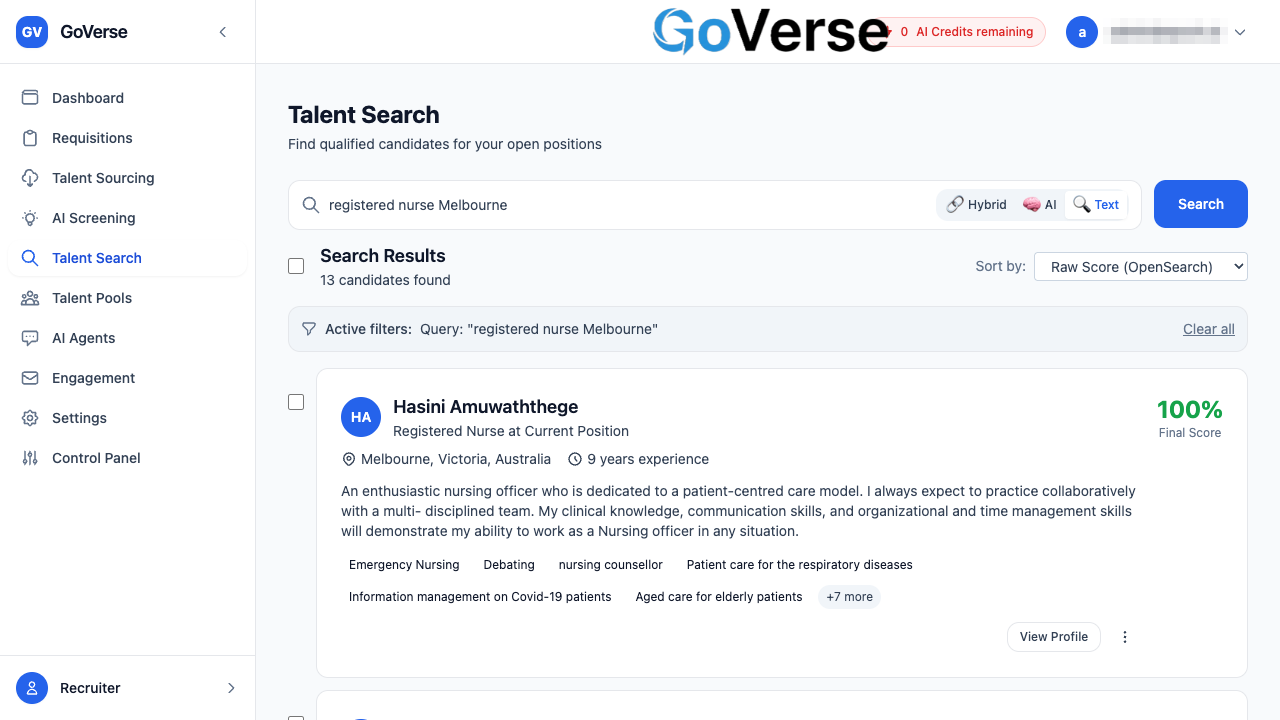
A card shows:
- Name and current role — e.g. "Senior Engineer at Acme", or "Not currently employed" if no current job is on file.
- Location 📍 and years of experience.
- Profile summary — a short description of the candidate.
- Matched-filter ticks — for each filter chip the candidate satisfies, a green ✓ tag appears (Title, Skill, or Location). If some of your filters aren't met, a small grey note says "N filters not matched", so you can see at a glance how complete the match is.
- Skills — up to six skills, with any that match your search highlighted in green and ticked (✓). A "+N more" tag indicates additional skills.
- Salary expectation — shown when the candidate has provided one.
The match score
On the right of each card is a score. Higher is a stronger fit. When the score is shown as a percentage, its colour gives you an instant read:
| Colour | Score | Read as |
|---|---|---|
| 🟢 Green | 90%+ | Excellent match |
| 🔵 Blue | 80–89% | Strong match |
| 🟡 Yellow | 70–79% | Reasonable match |
| 🔴 Red | Below 70% | Weaker match |
The results header tells you the total number of candidates found, and how many you currently have selected.
Re-ordering results
Use the Sort by drop-down (top-right of the results) to change the order. The default, relevance-based order is recommended for most searches.
| Sort option | Orders by |
|---|---|
| Raw Score (OpenSearch) | The underlying search engine's raw relevance score |
| Normalized Score (0–100) | Relevance rescaled to an easy 0–100 range |
| Final Score (After AI) | The fit score after GoVerse's AI re-ranking |
| Experience | Years of experience |
| Salary | Salary expectation |
| Location | Location |
Load more
GoVerse shows the first batch of matches. Scroll to the bottom and click Load More Candidates to bring in the next batch.
Acting on candidates
There are two ways to act on results: on a single candidate from its card, or on many at once using the selection bar.
From a single card
- View Profile — opens the candidate's full profile page, where you can see their complete history and details.
- ⋮ (more actions) — opens a small menu with quick shortcuts, including Add to Requisition (see below), plus bookmark and talent-list shortcuts.
Selecting several candidates
Tick the checkbox to the left of any card to select it. The checkbox at the top of the results list selects or clears all candidates on the page. As soon as one or more are selected, an action bar appears along the bottom of the screen showing how many are selected, with three buttons.
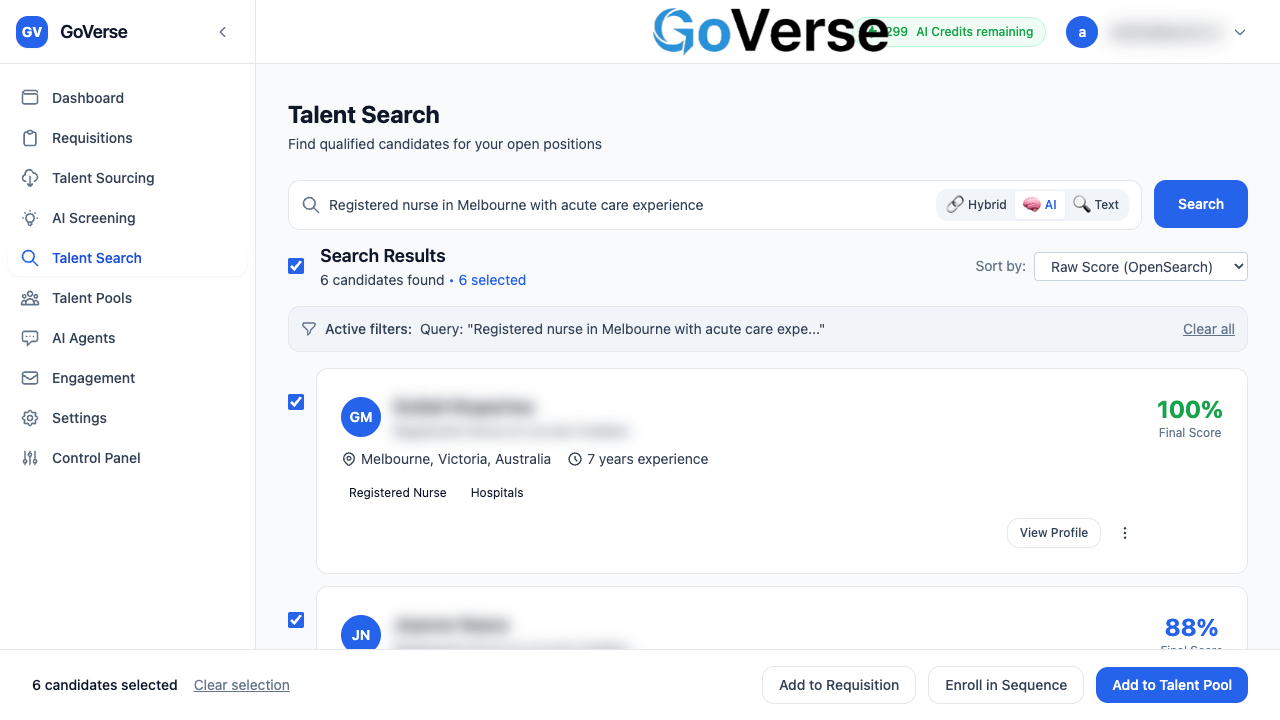
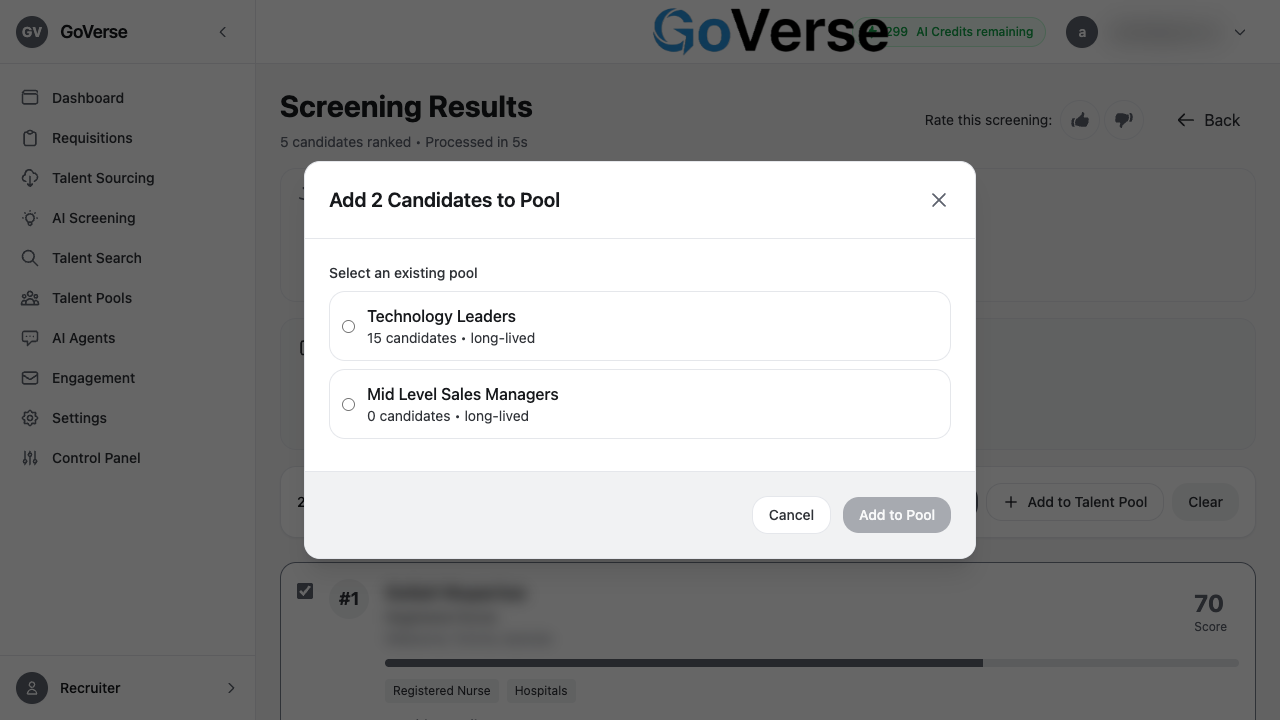
Opens a window listing your active talent pools (each showing its current candidate count). Pick one and click Add to Pool to add all selected candidates. If you have no pools yet, you'll be prompted to create your first pool; you can also start a new pool from the selected candidates.
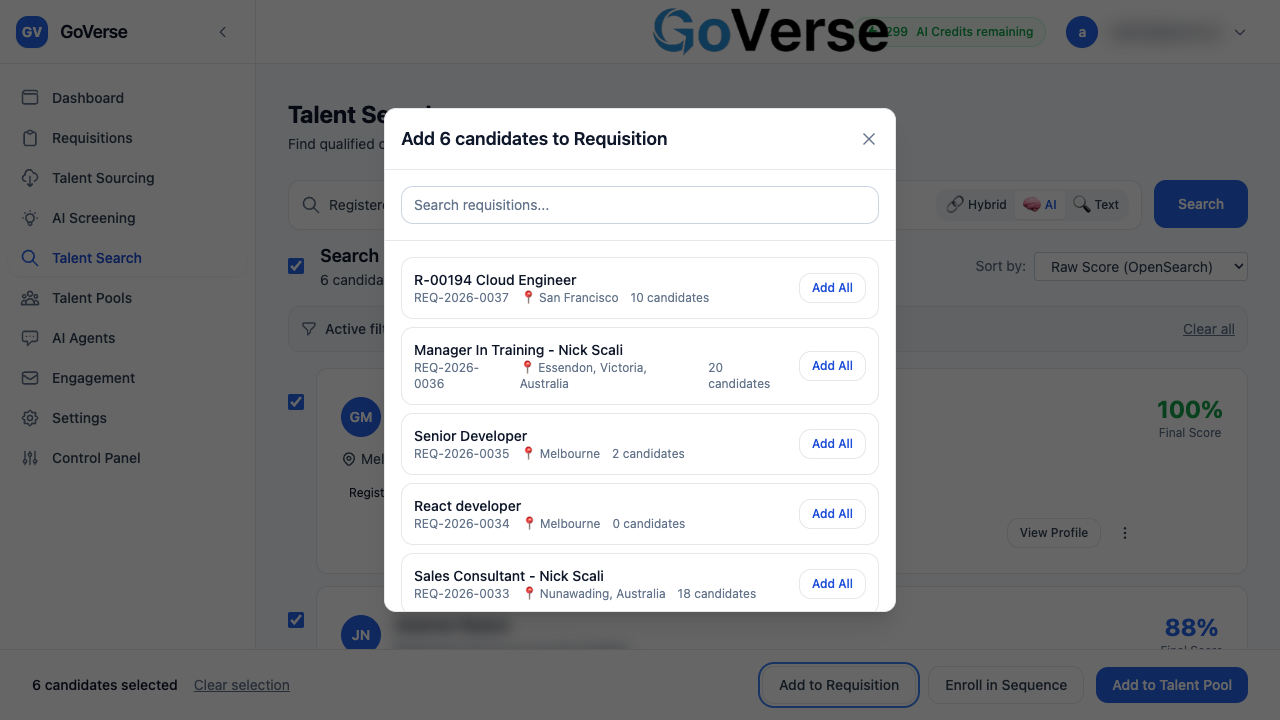
Opens a window where you search your active and draft requisitions and add the selected candidates to one. Each requisition shows its number, location, and current candidate count. Click Add All and a progress bar tracks the additions, ending with a summary such as "8 of 10 added" (anyone already on that requisition is skipped).
From a single card's ⋮ menu, the same Add to Requisition option adds just that one candidate; you'll see a ✓ Added confirmation on each requisition.
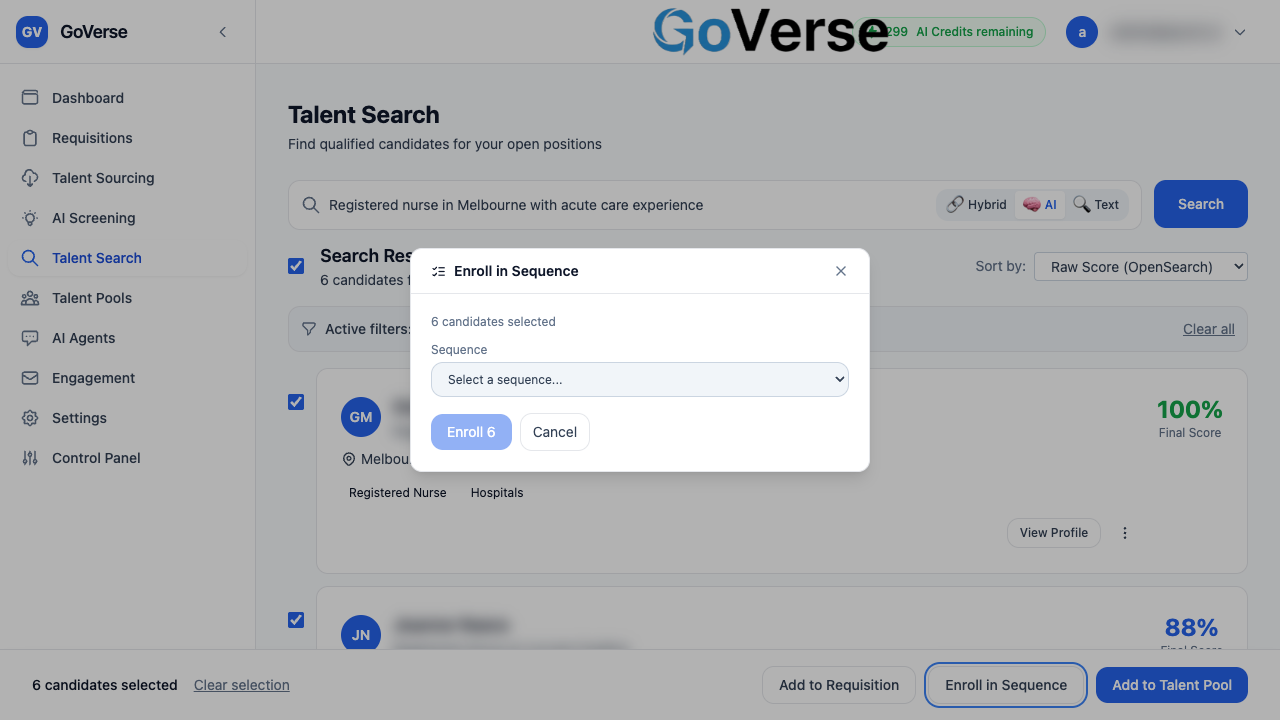
Opens a window to enrol the selected candidates into an active email sequence for outreach. Choose a sequence from the list — each is marked as a Nurture or Requisition sequence. If you pick a requisition sequence, you'll also be asked to choose a requisition, because the sequence's job details (title, link) are filled in from it. Click Enrol to finish.
Clear your selection
Use Clear selection in the action bar to deselect everyone and start over, without losing your search results.
Quick troubleshooting
No candidates found
Try loosening your search — remove a filter chip, use fewer specific terms, or switch to Hybrid or AI mode so GoVerse matches on meaning rather than exact words. Use Clear All Filters to reset and try again.
The search is taking a while
Very broad or very long queries take longer. If a search times out, try a shorter, more specific description.