Sequences
Menu: Engagement → Sequences
A sequence is an automated series of messages GoVerse sends to candidates on your behalf — a first email today, a follow-up a few days later, and so on. You build the steps once, enrol candidates, and GoVerse spaces the messages out and sends them for you. The moment a candidate replies, the sequence pauses so a real person can take over.
What a sequence is for
Two kinds of sequences share one builder:
- Nurture — general outreach that isn't tied to a specific job (keeping passive talent warm, re-engaging a pool).
- Requisition — outreach tied to one open job, so the copy can mention the role and link to the posting.
The Sequences list
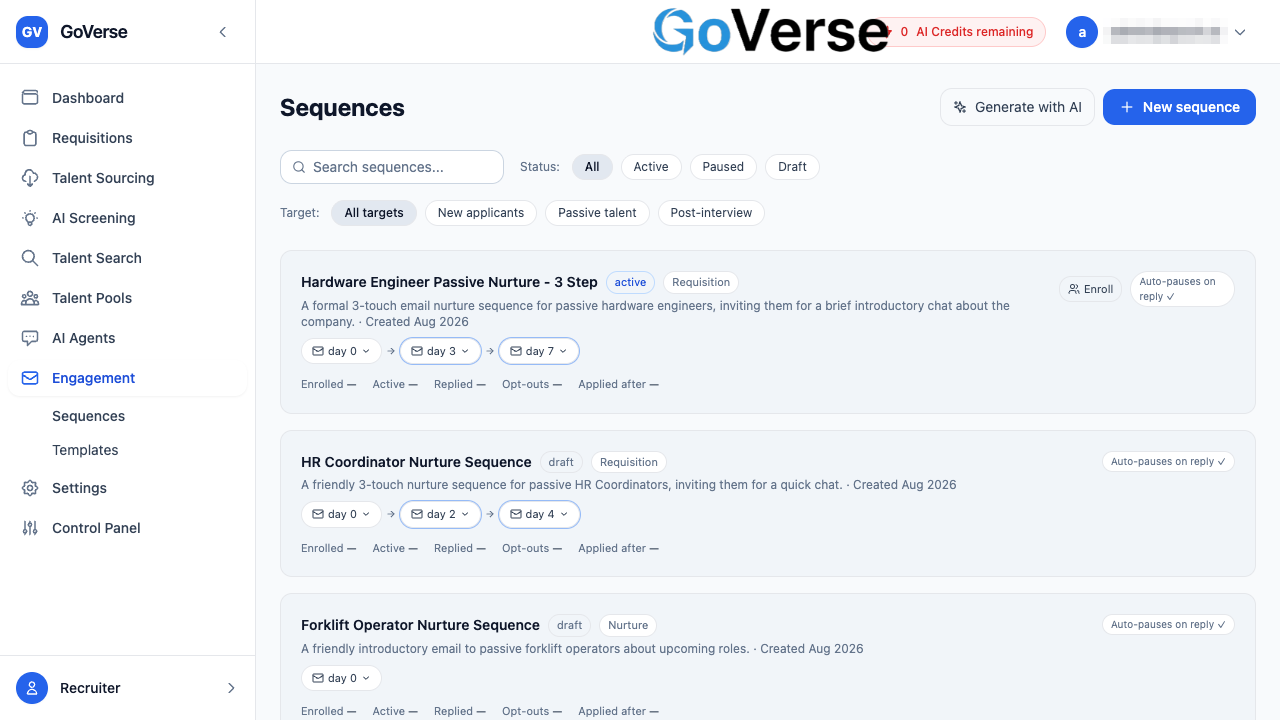
The Sequences page is your home base. Each card is one sequence, showing its name, status, type, the message steps at a glance, and quick actions.
Status: what the coloured label means
Every sequence carries one status label:
| Status | Meaning |
|---|---|
| Draft | Still being built. Nothing sends. Safe to edit freely. |
| Active | Live. Candidates you enrol will start receiving messages. |
| Paused | Temporarily stopped. Appears dimmed. No new messages go out until it's active again. |
| Archived | Retired and hidden from the everyday list. |
Each card also shows a second badge — Nurture or Requisition — so you can tell the two types apart at a glance, plus an Auto-pauses on reply ✓ reminder.
Finding a sequence
At the top of the list you have three controls:
- Search — type any part of a sequence's name or description to filter the list instantly.
- Status — chips for All / Active / Paused / Draft to narrow the list to one state.
- Target — chips for the audience a sequence is aimed at (New applicants, Passive talent, Post-interview).
Reading a sequence card
The row of pills on each card is the message plan. Every pill shows the channel icon (email, SMS, or WhatsApp) and the day that message goes out. Click a pill to expand it and see that step's channel, delay, and which template it uses.
Timing warning
If two steps are scheduled fewer than 7 days apart, GoVerse highlights the later step and warns you — sending again too soon can push people to opt out.
The counters at the bottom of each card (Enrolled, Active, Replied, Opt-outs, Applied after) are placeholders for live performance figures.
Create a sequence manually
Select + New sequence (top right) to open the Sequence Editor on a blank sequence. (Prefer to have GoVerse draft the copy for you? See Create a sequence with AI.)
1. Describe the sequence
At the top of the editor, fill in the basics:
| Field | What it does |
|---|---|
| Name | How the sequence appears in your list. |
| Description | A note on who it's for and what it does. |
| Purpose | Nurture (no job) or Requisition (job-specific). Requisition unlocks job merge variables like {{job_title}} and {{requisition_link}}. |
| Default channel | The channel new steps use unless you override them — Email (fallback), SMS, or WhatsApp. |
| Sender identity | Who the messages come from — the Assigned recruiter or a shared Account sender. |
| Send time window | When messages may go out — Any time, 9am–6pm local, or 9am–12pm local. |
Requisition sequences
When Purpose is Requisition, job details (title, link) aren't fixed into the sequence — you choose the specific job later, at the moment you enrol candidates. That's what fills in the job variables.
2. Build the steps
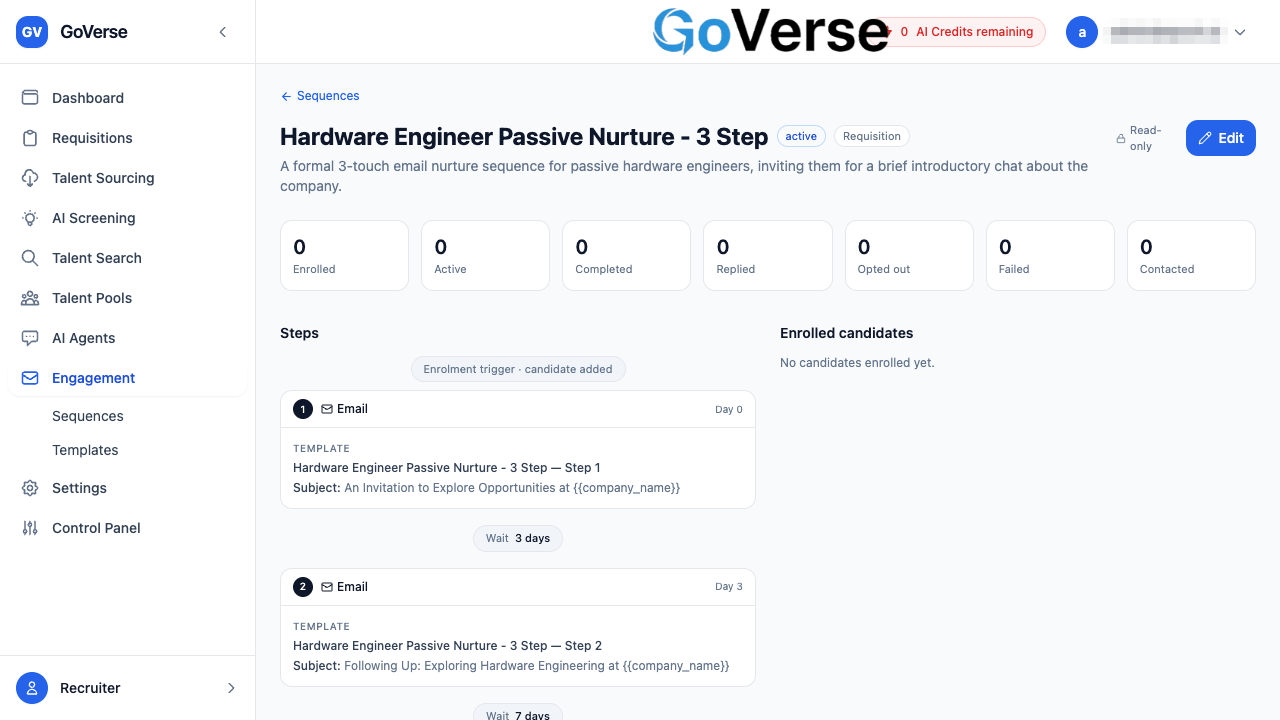
Every sequence starts from an Enrolment trigger · candidate added marker. Below it you add message steps.
- Select + Add step to add a message. The first step goes out on day 0 (on enrolment); each new step defaults to 3 days after the one before.
- On each step card, pick the channel (Email / SMS / WhatsApp) and the template that supplies the subject and body. The template dropdown only lists templates that match the step's channel and the sequence's purpose.
- Between two steps sits a Wait N days connector. Select it to open the delay editor and change how long GoVerse waits before that step.
SMS length
On an SMS step, GoVerse shows the character count so you can keep messages to a single segment.
If a step arrived as AI-generated copy (from the Generate with AI wizard), it shows an editable subject and body with a template name box. That copy is saved as a brand-new reusable template when you save the sequence — see the Templates note below.
3. Set how the sequence responds
Further down, Response detection controls what happens when a candidate reacts:
- Pause sequence when candidate replies — always on and can't be turned off. This is the safety net that stops a real conversation being interrupted by an automated follow-up.
- Notify recruiter on reply — on by default.
- Notify recruiter on email open — off by default.
4. Preview the journey
The right-hand panel shows a Candidate journey preview — each message plotted on its day, in order, ending with a Sequence complete marker and a 30-day cooldown before someone can be re-enrolled. Below it, Exit conditions list every way a candidate leaves the sequence early: they reply, they opt out, an application is created, they're hired, all steps finish, or a recruiter removes them. Most exit conditions are always on; Application created is one you can switch off.
Save as a draft vs. activate
The editor's top bar gives you two ways to save:
Stores your work without sending anything. Available as soon as the sequence has a name. Use this while you're still writing steps or waiting on templates. The sequence stays in Draft status.
Saves and turns the sequence Active so enrolled candidates start receiving messages. This becomes available only once the sequence has a name, at least one step, and every step has a template (or copy) to send.
Editing a live sequence
If a sequence is already Active, the editor reminds you that your changes apply to future enrolments only — candidates already partway through keep the plan they started on.
Enrolling candidates
Enrolment is what actually puts candidates into a sequence. A sequence must be Active to enrol into it.
- On the Sequences list, an active sequence's card shows an Enroll button.
- Selecting it opens the Enroll Candidates window.
- If the sequence is a Requisition sequence, you must first choose the Requisition (job) — this is what fills in the job title and link in the messages.
- Pick one or more candidates, then select Enroll.
Enrol from elsewhere
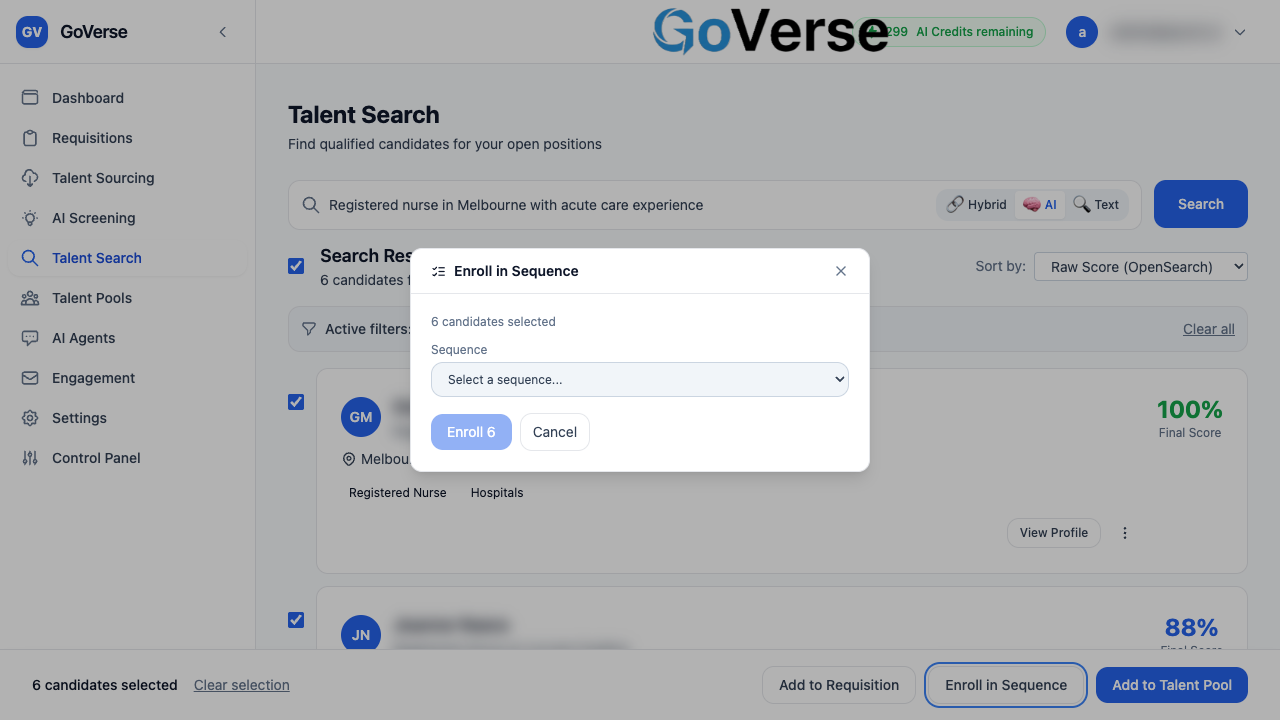
You can also enrol candidates into a sequence directly from Talent Search and Talent Pools using the same Enroll in sequence action.
Auto-pause on reply
This is the behaviour that keeps automation from talking over a live conversation. The instant a candidate replies to any message in the sequence, GoVerse stops sending them further steps — the exit condition Candidate replies is permanent and can't be switched off. The same happens if a candidate opts out. On the sequence's detail view those candidates show as Replied or Opted out rather than continuing to receive messages.
Viewing a sequence
Selecting any card opens its read-only detail view — safe to look at without risk of changing a live sequence. It shows:
- Headline stats: Enrolled, Active, Completed, Replied, Opted out, Failed, and Contacted.
- The steps laid out in order, each on its cumulative day, with the template it uses.
- An Enrolled candidates table listing each candidate by name and location, their status, which step they've reached, and when they were enrolled.
To make changes, select Edit — the detail page never edits in place, so you won't alter a running sequence by accident.