Templates
Menu: Engagement → Templates
A template is a reusable message — a subject line and body you write once and
send many times. Instead of retyping the same outreach, you save it as a template
and drop it into as many sequence steps as you like. Templates also use merge
variables (placeholders like {{first_name}}) that GoVerse fills in with each
candidate's real details when the message is sent.
The Templates library
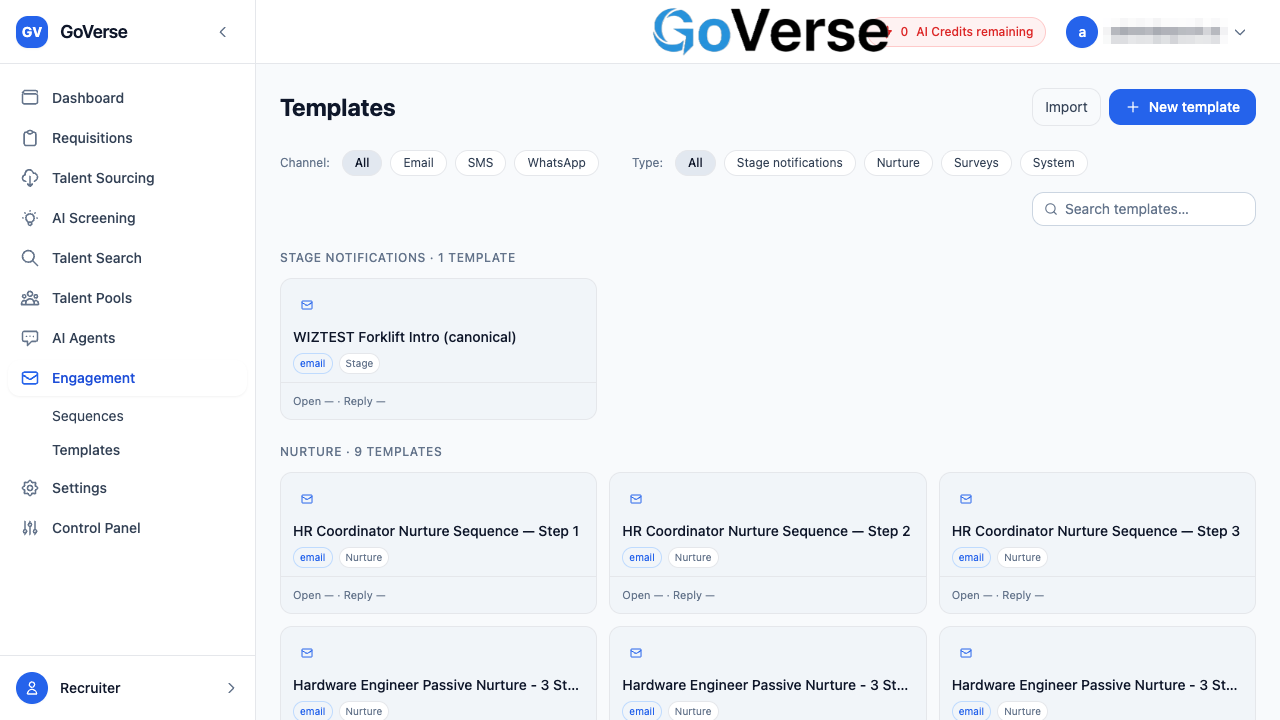
The Templates page lists everything you can send, grouped into sections so it's easy to browse.
How templates are grouped
GoVerse sorts your templates into four sections:
| Section | What lives here |
|---|---|
| Stage notifications | Messages tied to pipeline stages (interview, offer, rejection, assessment). |
| Nurture | General outreach and talent-pool / reminder messages. |
| Surveys | Feedback and NPS messages. |
| System | Built-in templates GoVerse ships with — read-only (marked with a lock). |
Finding a template
Three controls sit above the list:
- Channel — chips for All / Email / SMS / WhatsApp.
- Type — chips for All / Stage notifications / Nurture / Surveys / System.
- Search — type any part of a template's name or description.
Reading a template card
Each card shows the channel icon, the template name and description, and small pills for its channel, category, and — for built-ins — a System tag. WhatsApp templates also show their approval status (pending / approved / rejected). Hovering a card reveals quick actions (Clone, and a menu with Edit / Clone / Preview / Archive). System templates show a lock instead, because they can't be edited.
Create or edit a template
Select + New template to start a fresh one, or select any card to open it. Both open the template editor as a panel that slides in from the side.
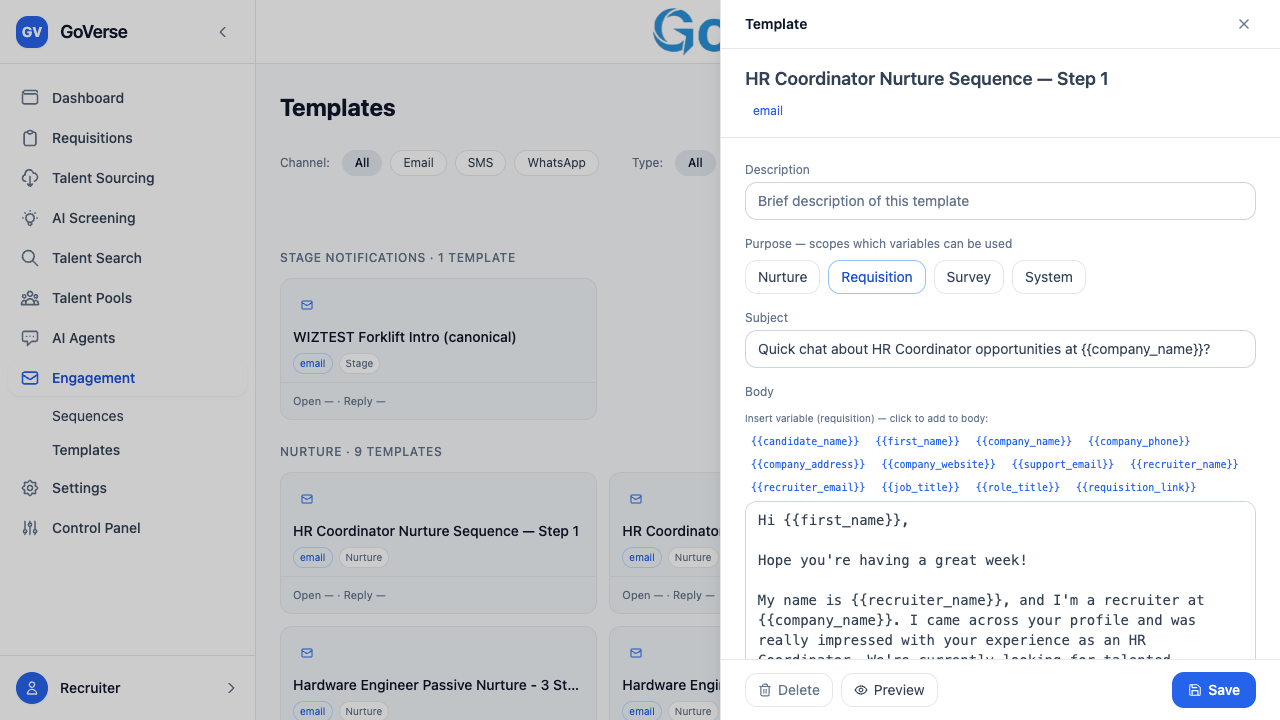
Fill in the template:
| Field | Notes |
|---|---|
| Name | How the template appears in your library. |
| Channel | Email, SMS, or WhatsApp. You choose this only when creating; it's fixed afterwards. |
| Description | A short note on when to use this template. |
| Purpose | Nurture, Requisition, Survey, or System. This decides which merge variables you're allowed to use (see below). |
| Subject | Email only — supports merge variables. |
| Body | The message itself. Also supports merge variables. |
Email templates have both a Subject and a Body, and both can contain merge variables.
SMS templates are body-only. As you type, GoVerse shows a live character and segment counter (and whether the text fits the standard GSM-7 set or needs Unicode), so you can keep a message to a single segment where it matters.
WhatsApp templates are body-only and must be registered with the WhatsApp provider before they can be used. Use the Register with WhatsApp provider button in the editor; once approved, the template becomes read-only.
To save, select Create (or Save). The button stays disabled until the template has a name and a body — and it will block if you've used a variable that isn't allowed for the chosen purpose (see below).
Built-in templates are read-only
System templates (and approved WhatsApp templates) can be viewed and previewed but not edited. To adapt one, clone it into a new template you own.
Merge variables
Merge variables are placeholders you drop into a subject or body. When GoVerse sends
the message, each one is replaced with that candidate's real detail. Type them in the
{{double_brace}} form, or use the Insert variable palette in the editor to click
them in — the palette only offers the variables that are valid for the template's
purpose.
The full list of variables
| Variable | Fills in with | Available in |
|---|---|---|
{{candidate_name}} |
Candidate's full name (falls back to "there") | All purposes |
{{first_name}} |
Candidate's first name | All purposes |
{{company_name}} |
Your company / team name | All purposes |
{{company_phone}} |
Your contact phone | All purposes |
{{company_address}} |
Your postal address | All purposes |
{{company_website}} |
Your website | All purposes |
{{support_email}} |
Your support / careers email | All purposes |
{{recruiter_name}} |
The sequence owner's name | All purposes |
{{recruiter_email}} |
The sequence owner's email | All purposes |
{{job_title}} |
The requisition's job title | Requisition only |
{{role_title}} |
Same as job title (used by some stage templates) | Requisition only |
{{requisition_link}} |
Link to the job / requisition | Requisition only |
Company details come from your settings
The {{company_*}} and {{support_email}} values are pulled from
Settings → Company Profile, so fill those in once and every template stays
consistent.
Job variables are gated on purpose
{{job_title}}, {{role_title}}, and {{requisition_link}} only work in
Requisition templates, because GoVerse can only look up a job when a
template is attached to one. If you use one of these in a Nurture, Survey,
or System template, the editor flags it and blocks saving until you remove
it or switch the purpose to Requisition.
Preview with test values
Before saving, select Preview to see the finished message. GoVerse lists every variable you've used with a box for a test value; fill them in and the preview renders the subject and body exactly as a candidate would receive them. It's the quickest way to catch a stray placeholder or an awkward line.
How sequences reuse templates
Templates and sequences work hand in hand. In the Sequence Editor, each step has a Template dropdown that lists the templates matching that step's channel and the sequence's purpose. Pick one and the step sends that template's subject and body — the template stays the single source of truth, so editing the template updates every step that uses it.
AI-generated copy lands here too
When you build a sequence with Generate with AI and save it, the generated copy for each step is saved into this library as a named, reusable template (you can set the name in the editor). After that it behaves like any other template — searchable, editable, and reusable across other sequences.