Dashboard
Menu: Dashboard · Available on every plan
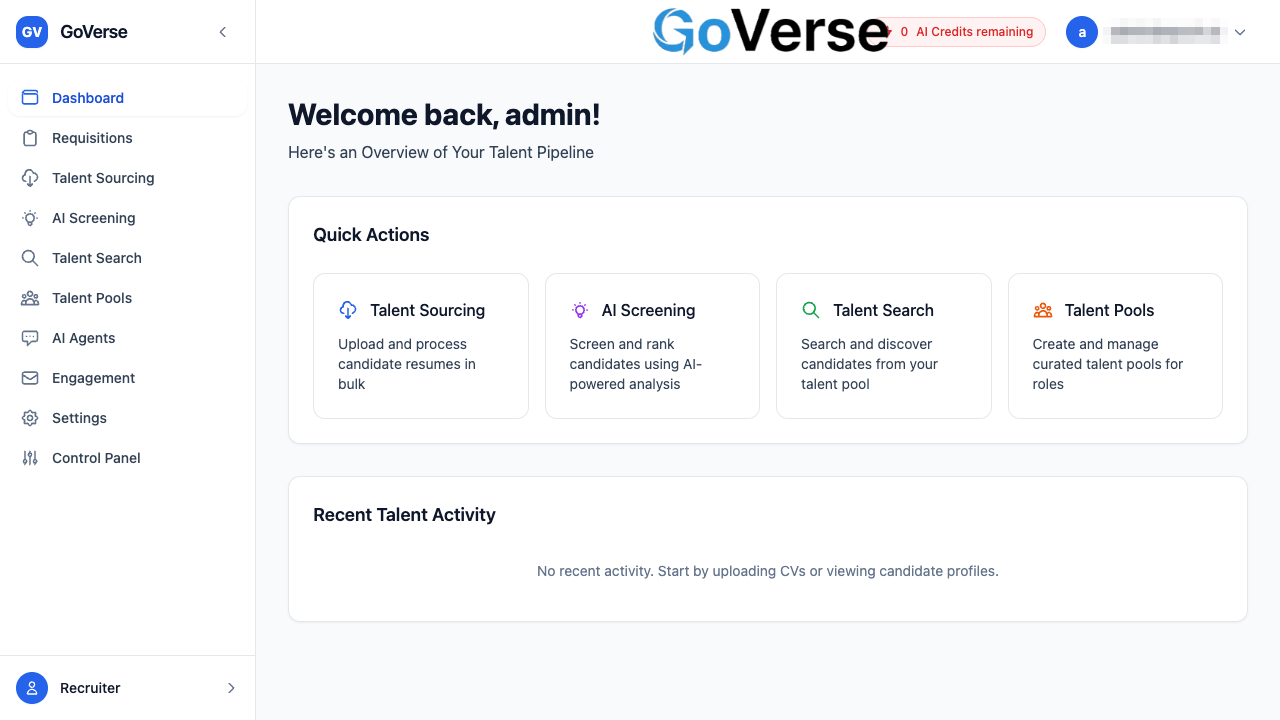
The Dashboard is your landing page — the first screen you see after signing in to GoVerse. It greets you by name, gives you one-click shortcuts into the parts of the platform you use most, and shows a running list of the work you've done recently.
What you'll find here
- A personal welcome — "Welcome back, your name!" followed by the line Here's an Overview of Your Talent Pipeline.
- Quick Actions — four large buttons that jump straight to the main tools for bringing in and working with candidates.
- Recent Talent Activity — a short, clickable history of things you've recently done, such as uploading a batch of CVs or opening a talent pool.
How to get there
Select Dashboard at the top of the left-hand menu. You also land here automatically every time you sign in.
Quick Actions
The Quick Actions panel is a shortcut launcher. Each card shows an icon, a title, and a one-line description, and clicking it takes you directly to that tool.
| Action | What it's for | Where it takes you |
|---|---|---|
| Talent Sourcing | Upload and process candidate resumes in bulk | Talent Sourcing |
| AI Screening | Screen and rank candidates using AI-powered analysis | AI Screening |
| Talent Search | Search and discover candidates from your talent pool | Talent Search |
| Talent Pools | Create and manage curated talent pools for roles | Talent Pools |
A faster route than the menu
The Quick Actions are the same destinations you'll find in the left menu — they're placed on the Dashboard so your most common starting points are one click away when you first log in.
Start with Talent Sourcing to upload your first CVs. Once candidates are in the system, use AI Screening to rank them and Talent Pools to group the ones you want to keep track of.
Jump straight to Talent Search to find people already in your talent pool, or Talent Pools to open a curated list you've built for a role.
Recent Talent Activity
Below the Quick Actions, the Recent Talent Activity panel lists your most recent actions in GoVerse — up to the five newest items. Each row shows an icon indicating the kind of activity, a short title, and the date and time it happened.
The icon tells you what type of item it is:
- Sourcing batch — a group of CVs you uploaded for processing.
- Talent pool — a pool you created or opened.
- Candidate profile — an individual candidate you viewed.
Click any row to jump straight back to that item, and use the arrow on the right as a visual cue that the row is clickable.
When the list is empty
If you haven't done anything yet, this panel reads "No recent activity. Start by uploading CVs or viewing candidate profiles." The list fills in on its own as you work — there's nothing to set up.
Recent activity is tied to this browser
The recent activity list is remembered in the browser you're using. If you sign in from a different computer or browser, or clear your browsing data, the list may appear empty even though your candidates, pools, and batches are all safely stored in GoVerse.
Tips
- Use the Dashboard as your daily starting point. The Quick Actions cover the four things recruiters do most, so you rarely need the menu first thing.
- The welcome line is just a greeting — the real work starts in the Quick Actions and the tools they link to.
- If something looks off while the page loads, give it a moment. The Dashboard briefly shows a shimmering placeholder while it gets ready, then fills in.
- Seeing a red message at the top? That's an error notice. Read it, then close it with the ✕ on the right; if it keeps coming back, contact your administrator.