Interview Scheduling
Accessed from a requisition's applicants · In beta
Interview Scheduling lets you set up an interview with a candidate without
leaving GoVerse and without the usual back-and-forth of emails. You either
propose a specific time and ask the candidate to confirm, or ask the
candidate to pick from times your interviewers are free. GoVerse sends the
polished invitation, collects the candidate's response, and — once it's locked
in — emails everyone a confirmation with a calendar invite (.ics) attached.
In beta — coming to every plan
Scheduling will be a standard feature available on every plan. It's currently in beta, so while we finish it off it's being rolled out to Premium and above customers first. During the beta it's switched on for your account by GoVerse — if you don't see the Schedule buttons described below, it hasn't been turned on for your account yet, so contact your GoVerse representative to request access.
What it's for
- Book an interview in a few clicks from the same screen where you review applicants — no copy-pasting times into email.
- Let the candidate choose a time that suits them, from a set of slots your interviewers have already approved.
- Keep everyone in sync — the candidate, the recruiter, and the interviewers all get the same confirmation and calendar invite.
- See status at a glance on the applicant list, so you always know who's scheduled, who still owes you a reply, and whose interview is done.
Before you start: the candidate needs an email
An interview invitation is sent by email, so a candidate must have an email address on file before you can schedule them. If GoVerse doesn't have one, the Schedule button is disabled and shows the note "No candidate email on file — can't send an interview invite." Add the candidate's email (from their profile or the applicant details), and the button becomes available.
How to get there
Open a Requisition, go to its Applications tab, and find the candidate you want to interview. You'll see a Schedule action on the candidate's card (and in the applicant details). Selecting it opens the Schedule Interview window.
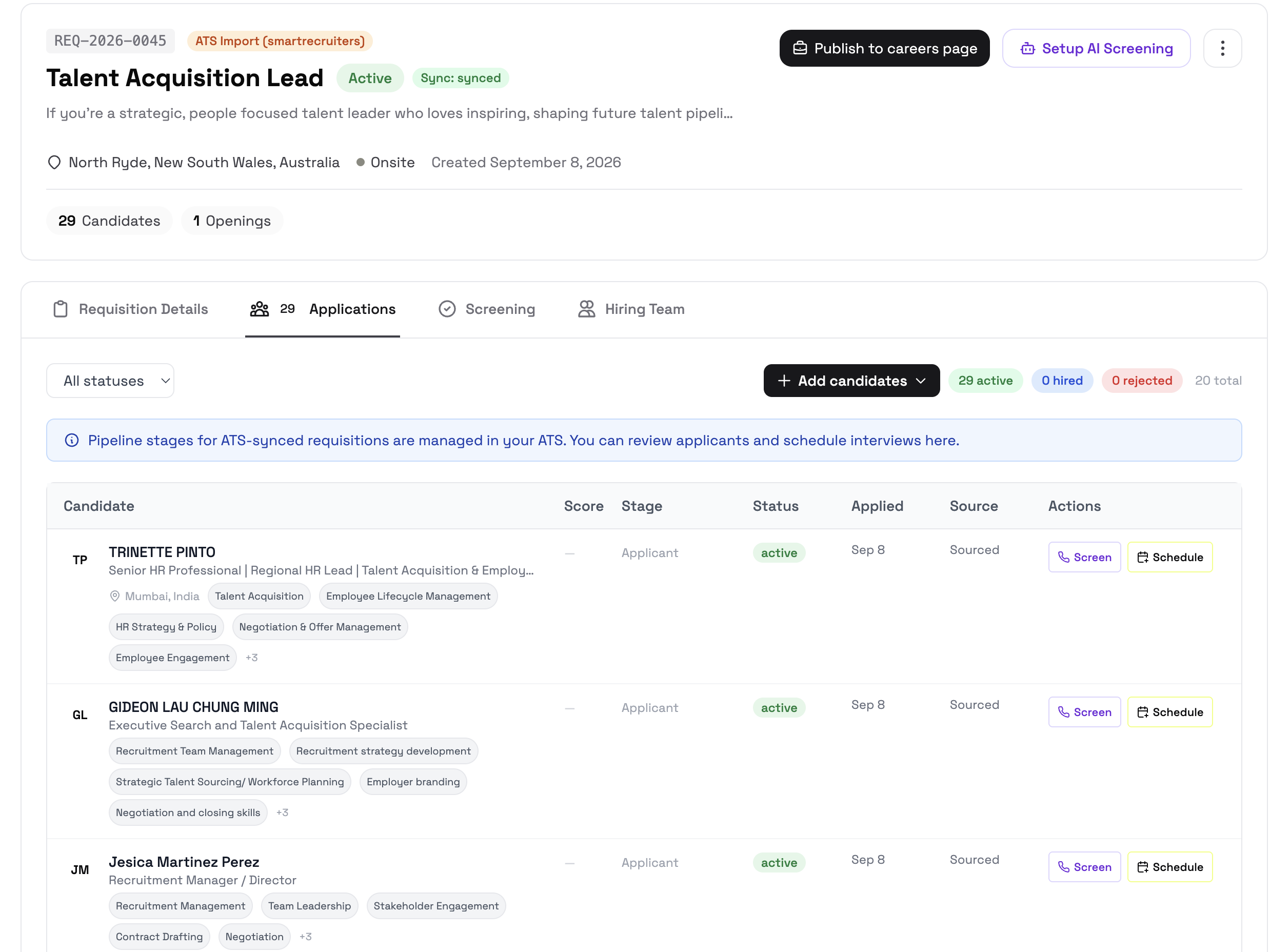
Don't see a Schedule button?
Two things control whether it appears: (1) scheduling must be turned on for your account (during the beta this is done by GoVerse — see the callout above), and (2) the candidate must have an email on file.
Two ways to schedule
The Schedule Interview window has two modes, shown as tabs at the top. Pick the one that fits how you want to work.
1. Set a time (you propose)
Choose this when you already know when you'd like to meet.
- Pick a start date and start time (times are offered in 15-minute steps).
- Choose a duration (from a short call up to a full-day session).
- Choose a format — Video Call, Phone, or In person.
- Set the time zone (it defaults to yours) and add any notes for the candidate.
Need help finding a good time? Use the built-in suggestion assist — GoVerse proposes sensible times you can drop straight into the form.
When you send it, the candidate gets an invitation asking them to Accept or Decline. The interview stays pending until they respond — so a time on your calendar is only confirmed once the candidate says yes.
2. Request availability (the candidate picks)
Choose this when you'd rather offer options than pin down one time.
- Give a date range to look across and the interview length you need.
- Set a response deadline so the request doesn't sit open forever.
- Optionally have your interviewers submit the windows they're free.
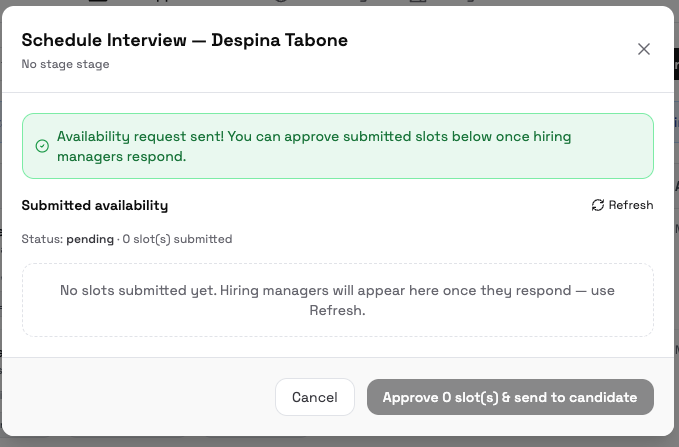
You then approve the slots you're happy with, and the candidate receives a link to a simple page where they choose one of your approved times. As soon as they pick, the interview is confirmed and everyone is notified.
Once you send the request, GoVerse confirms it and waits for your interviewers:
Each interviewer gets an email inviting them to share when they're free…
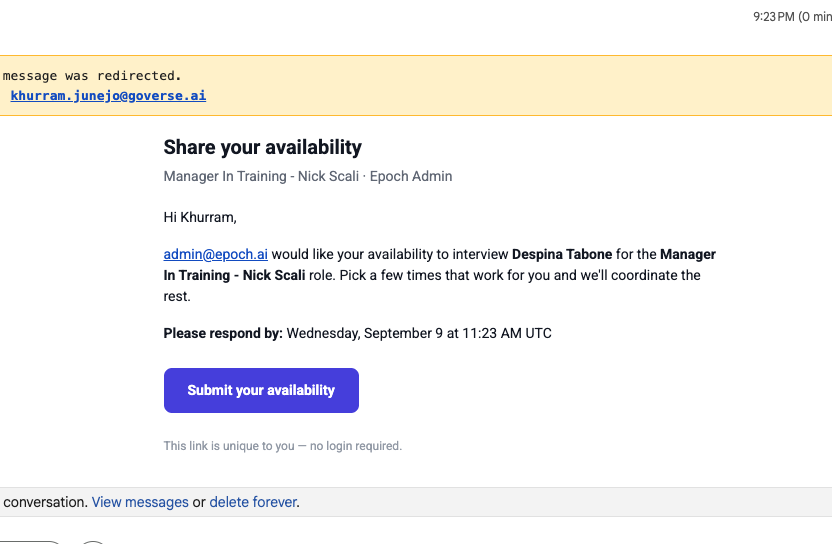
…which opens a simple page (no login needed) where they add the windows they're available:
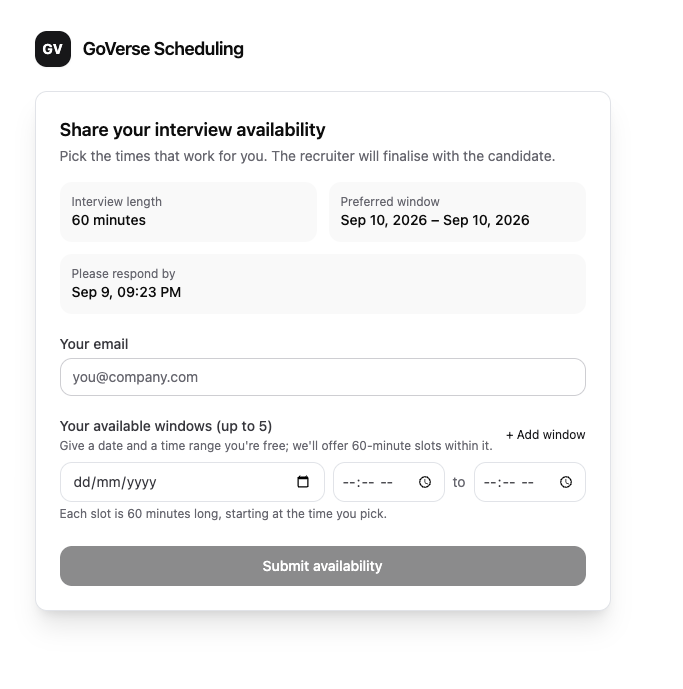
When availability comes back, the applicant shows a "ready to approve slots" prompt with an Approve slots action:
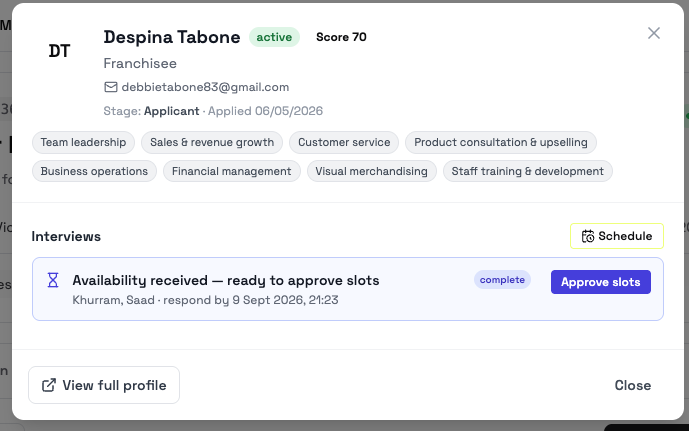
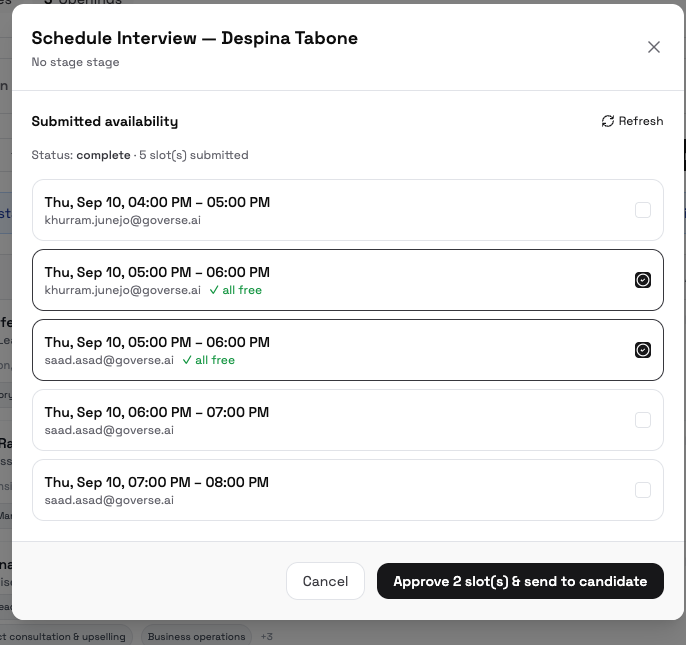
You then tick the times you want to offer — GoVerse shows a "✓ all free" badge where every interviewer is available — and send them to the candidate:
Interviewers, not hiring managers
The people who take part in the interview are your interviewers. In the availability flow they can submit the windows they're free, and you approve which of those become options for the candidate.
What the candidate sees
The candidate never needs a GoVerse login. They receive an email from your company (the employer on the requisition) with a secure link:
- If you proposed a time, the link opens a page showing the interview details where they Accept or Decline.
- If you requested availability, the link opens a page listing your approved times where they choose one.
Once the interview is confirmed, the candidate — and your interviewers — receive
a confirmation email with a calendar invite (.ics) attached, so it lands
straight in their calendar.
The calendar invite arrives on confirmation
To avoid confusion, the calendar file is attached to the confirmation (once a time is locked in), not to the initial invitation.
Reading the status indicators
On the applicant list, small informational icons tell you where each candidate's interview stands. They're there to inform, not to click — hover over one to read what it means.
| Indicator | Meaning |
|---|---|
| Interview icon — upcoming | An interview is confirmed and still to come. |
| Interview icon — awaiting | You've invited the candidate and are waiting for their reply. |
| Interview icon — done | The interview time has passed. |
| +N next to the icon | There's more than one interview for this candidate. |
| Hourglass — awaiting | An availability request is out; interviewers or the candidate still need to act. |
| Hourglass — ready | Availability has come back and is ready for you to approve. |
Tips
- Add the email first. The most common reason Schedule is greyed out is a missing candidate email.
- Use "Request availability" for busy panels. If several interviewers are involved, letting the candidate pick from approved windows saves a lot of back-and-forth.
- A proposed time isn't final until the candidate confirms. The interview stays pending until they Accept.
- Confirmations carry the calendar invite. Ask candidates to check for the
.icsattachment on the confirmation email.
Related
- Requisitions — where you find applicants to schedule.
- Plans & feature access — Scheduling's beta rollout (coming to all plans; Premium+ during beta).