Talent Pools
Menu: Talent Pools · Requires a plan with advanced search (Premium+)
Talent Pools are named, reusable collections of candidates — for example a pool per role family ("Senior Software Engineers"), per campaign ("Q1 Sales Drive"), or per location. Every pool is tied to a set of screening criteria, so the moment you add a candidate, GoVerse scores them with AI against those criteria and shows you a match percentage with a plain-English breakdown of why. From there you review, shortlist, and move the strongest people into a requisition or an engagement sequence.
What makes a pool an AI pool
A pool always carries a screening criteria set (chosen when you create it). Candidates added to the pool are automatically evaluated against that criteria set — you don't run scoring manually. The list page calls these "AI Talent Pools" for that reason.
What it's for
- Group candidates into meaningful, named lists you can come back to.
- Rank automatically — each candidate gets a 0–100% match score against the pool's criteria, so the best fits float to the top.
- Understand the score — every score comes with a per-criterion breakdown and a short written explanation ("evidence") for each criterion.
- Take action in bulk — shortlist people, enrol a group into an email sequence, or remove candidates who aren't a fit.
- Two lifespans — keep an evergreen pipeline (long-lived) or spin up a short-term pool for a single hiring campaign (short-lived).
How to get there
Select Talent Pools in the left-hand menu. (The item is hidden if your plan doesn't include advanced search.)
The landing page — AI Talent Pools — shows every pool as a card. Each card displays the pool name, description, status, how many Candidates it holds, a Pool Health figure, the pool's top skill tags, and when it was last updated.
You can narrow the list with the tabs and search box at the top:
| Control | What it does |
|---|---|
| All Pools / Active / Paused / Archived tabs | Filter by status. Each tab shows a live count. |
| Search pools… box | Find a pool by name or description. |
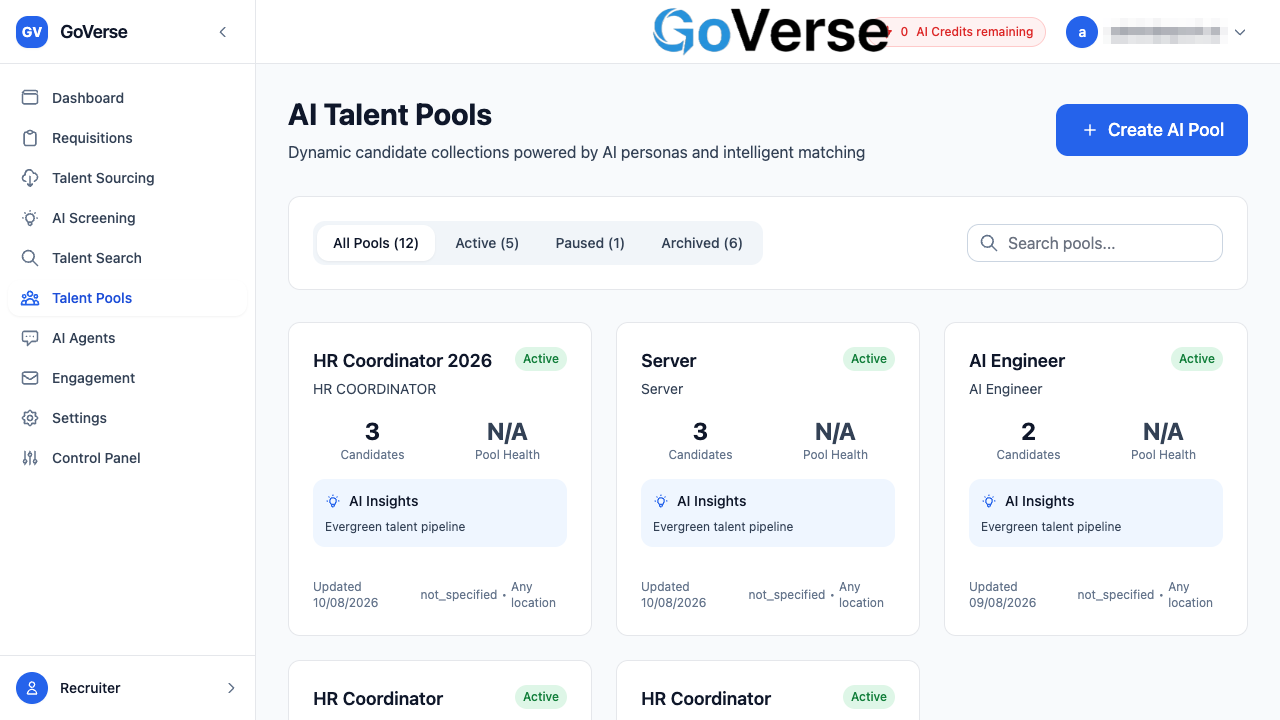
If you don't have any pools yet, the page shows an empty state with a Create Your First AI Pool button.
Creating a pool
- On the Talent Pools page, select Create AI Pool (top right).
-
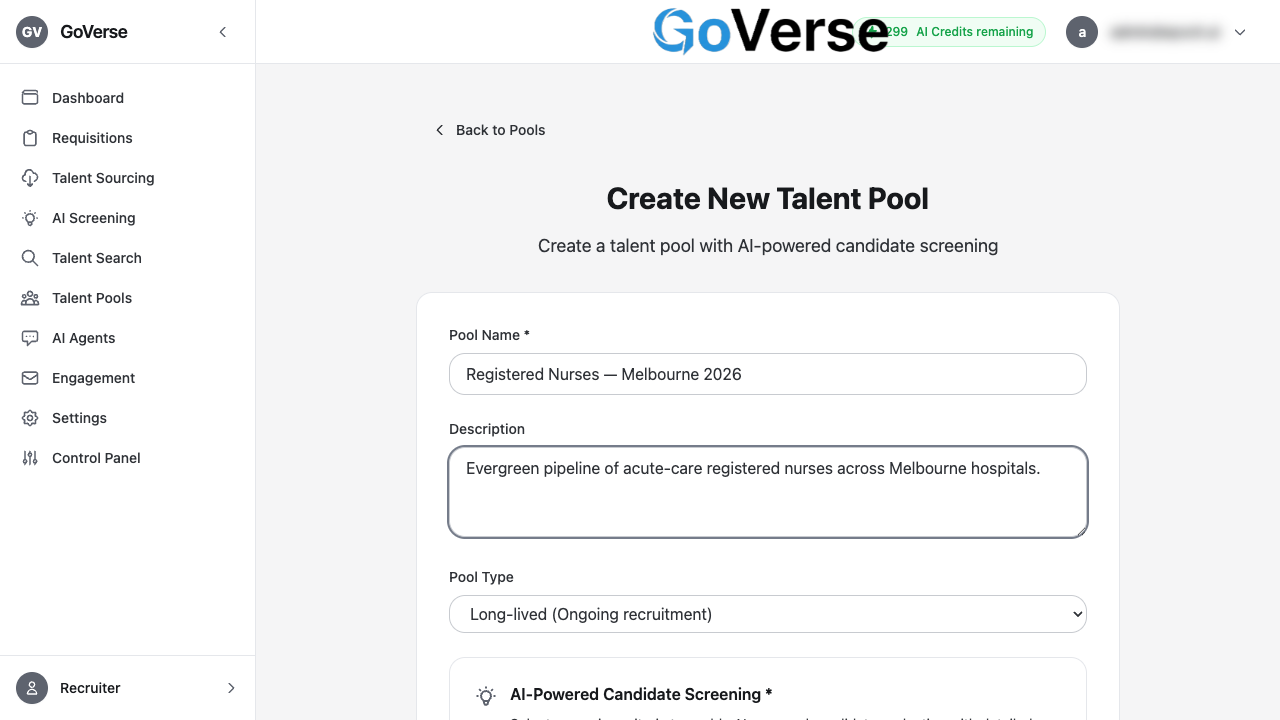
Fill in the pool details:
Field Notes Pool Name (required) A recognisable name, e.g. Senior Software Engineers Q1 2026. Description A short line describing who belongs in this pool. Pool Type Long-lived — an ongoing pipeline you keep topped up. Short-lived — a campaign or single-project pool. -
Under AI-Powered Candidate Screening, choose a Screening Criteria Set from the dropdown. When you pick one, its individual criteria and their weights are listed so you can confirm you've chosen the right one.
- Select Create Pool.
A screening criteria set is required
You can't create a pool without selecting a screening criteria set — the Create Pool button stays disabled until you do. This is what powers the automatic AI scoring later. Criteria sets are created and managed in Talent Search / Screening Criteria, and the same set can be reused across many pools.
Editing later
You can rename a pool, change its description, switch its status, or swap the screening criteria set at any time from the pool's detail page (Edit Pool).
Adding candidates
You don't add people from inside a pool — you send them to a pool from wherever you're looking at candidates, using the shared Add to Pool window. Two places open it:
- Run a search under Talent Search.
- Tick the candidates you want (or use select-all).
- In the action bar that appears at the bottom, select Add to Pool.
- Open a completed screening under AI Screening.
- On a candidate in the results, select Add to Talent Pool.
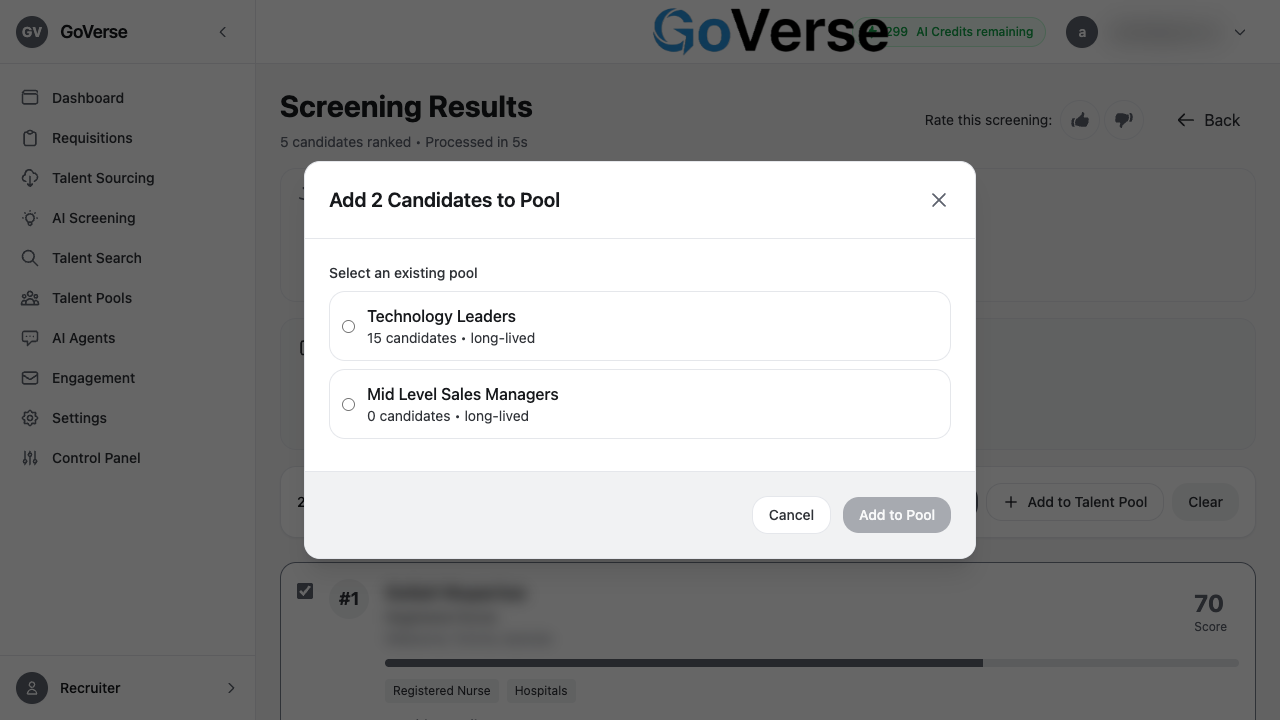
In both cases the same Add to Pool window opens:
- It lists your active pools, each showing its name, current candidate count, and type.
- Pick one pool, then select Add to Pool.
- If you have no active pools yet, the window shows a Create your first pool link instead.
Where the candidates land
Added candidates appear in the pool's detail page as New. If the pool has a screening criteria set (it always does), AI scoring kicks off automatically — see the next section.
Automatic AI scoring
This is the core of what a pool does. As soon as a candidate is added, GoVerse scores them against the pool's screening criteria using AI — you never trigger it by hand.
What you'll see on each candidate once scoring finishes:
- An AI Scored badge.
-
A large match percentage (0–100%), colour-coded so quality is obvious at a glance:
Match score Colour 80% and above Green (strong) 60–79% Blue (good) 40–59% Amber (borderline) Below 40% Red (weak) -
A Show Criterion Scores toggle. Expand it to see, for every criterion in the pool's set: the criterion's score, its weight (how much it counts toward the overall match), a progress bar, and a short evidence line explaining the score in words.
Scoring runs in the background
Scoring may take a moment. A status badge shows progress while a candidate is still being evaluated, and if scoring fails for someone you can retry it on that candidate. Candidates with a completed score simply show their match %.
Tell the AI when it's off
Each scored candidate has a Rate this overall match score control (thumbs up / thumbs down). Your rating feeds back to improve scoring — a thumbs-down lets you add a short comment explaining why.
The pool detail view
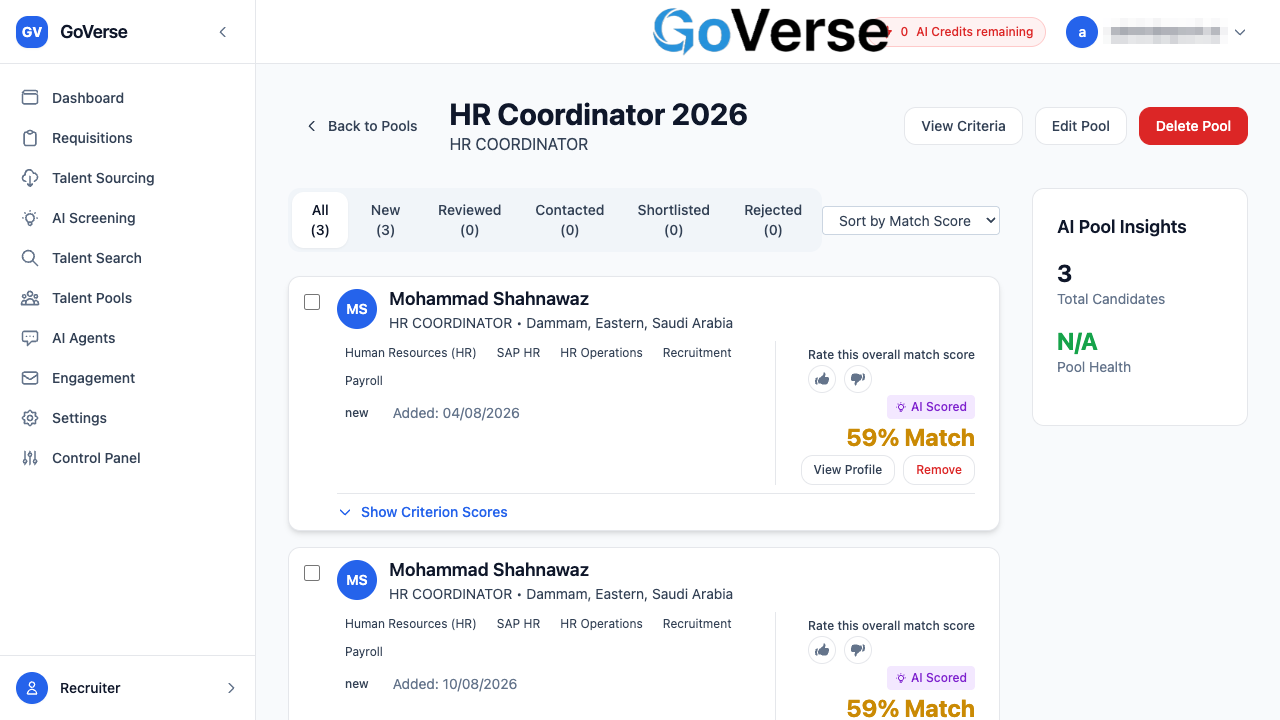
Selecting a pool card opens its detail page. It has three parts:
1. Header actions
| Button | What it does |
|---|---|
| View Criteria | Opens a summary of the pool: name, description, type, status, and the full screening criteria set (each criterion and its weight). |
| Edit Pool | Change the name, description, status, or screening criteria set. |
| Delete Pool | Permanently deletes the pool. You must type delete to confirm. |
2. Candidate list (main area)
- Status tabs — All / New / Reviewed / Contacted / Shortlisted / Rejected, each with a count, to filter the list by where each candidate is in your process.
- Sort — order the list (e.g. by match score).
- Each candidate row shows their name, title, experience, location, top skills, current status, when they were added, their AI match score and breakdown, plus View Profile and Remove actions.
3. AI Pool Insights (side panel)
A summary panel showing the pool's Total Candidates and Pool Health.
Pool Health
Pool Health is an at-a-glance indicator of how strong the pool is overall. It also appears on each pool card on the landing page (green when healthy, amber/red when the pool needs attention).
Working a pool: review, shortlist, act
Once candidates are scored, the pool becomes your shortlisting workspace.
Review individually. Expand a candidate's Criterion Scores to see exactly why they scored as they did, or select View Profile to open their full candidate profile.
Filter as you go. Use the status tabs to separate people you've already Reviewed or Shortlisted from those still New.
Act in bulk. Tick one or more candidates (checkbox on each card) and a bar appears at the bottom of the page with these actions:
Select Enroll in Sequence to add the selected candidates to an engagement email sequence — for example a nurture sequence for a long-lived pool, or a requisition sequence tied to a specific job. Pick the sequence in the window that opens.
Select Remove from Pool to take the selected candidates out of this pool.
Remove is safe
Removing a candidate only takes them out of this pool — it never deletes their candidate profile or affects other pools.
Move toward a requisition. For requisition-focused hiring, enrol your shortlist into the requisition's sequence (above) to start outreach, and use the candidate's profile to progress them into the requisition's pipeline.
Notes & tips
- Every pool needs criteria. Scoring, breakdowns, and match percentages all come from the pool's screening criteria set — that's why one is required at creation. Reuse proven criteria sets across pools rather than rebuilding them.
- Long-lived vs short-lived is about intent, not a hard limit: use long-lived for an ongoing pipeline you keep warm, short-lived for a single campaign.
- Statuses (New → Reviewed → Contacted → Shortlisted, or Rejected) are yours to manage — they help you track where each candidate is, and drive the filter tabs.
- Deleting a pool is permanent and requires typing
delete; removing a candidate from a pool is not — it leaves the profile untouched.