Create a sequence with AI
The Generate with AI wizard builds a multi-step nurture or requisition email sequence for you — either by drafting the copy from a short brief, or by letting you pick existing templates for each step. You review and edit everything before anything is saved, and generated copy is saved as reusable templates that the sequence then references (exactly like a manually-built sequence).
Scope today
Email only. The generated copy uses only the merge variables valid for the chosen purpose, and nothing is ever sent automatically — the wizard only produces a draft for you to review and save.
1. Open the wizard
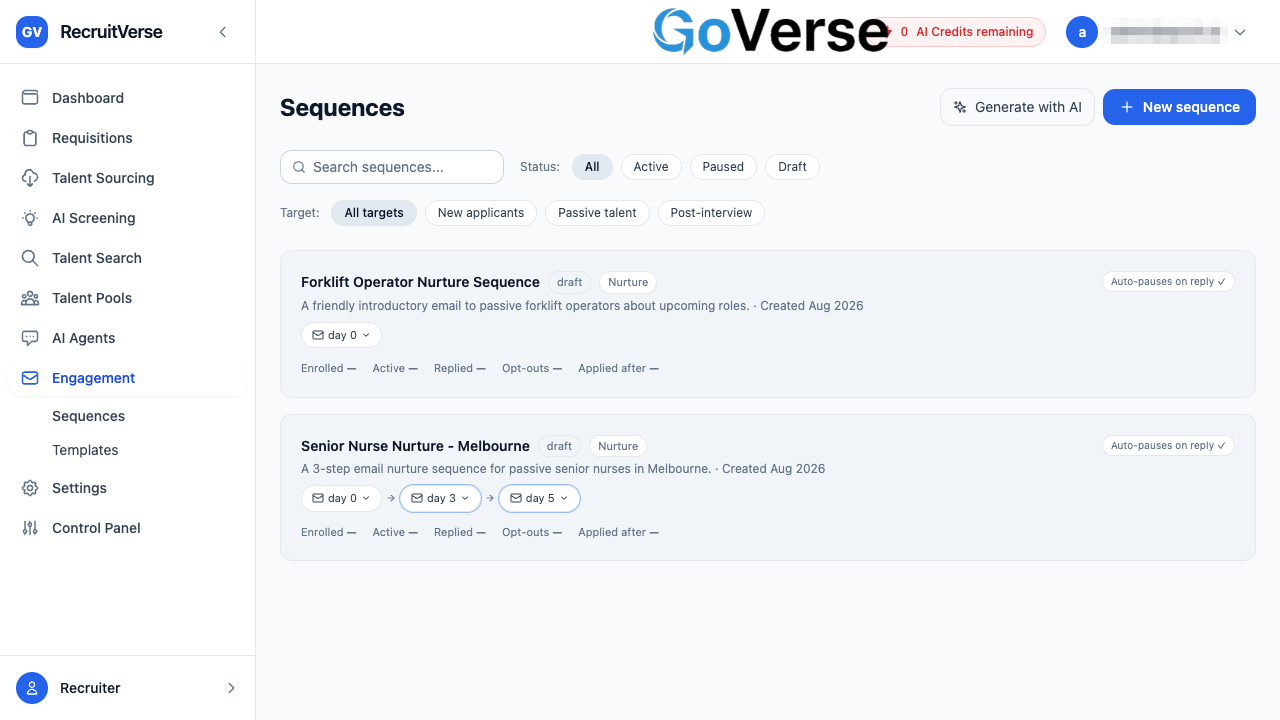
Go to Engagement → Sequences and select Generate with AI (top right).
2. Step 1 — Setup
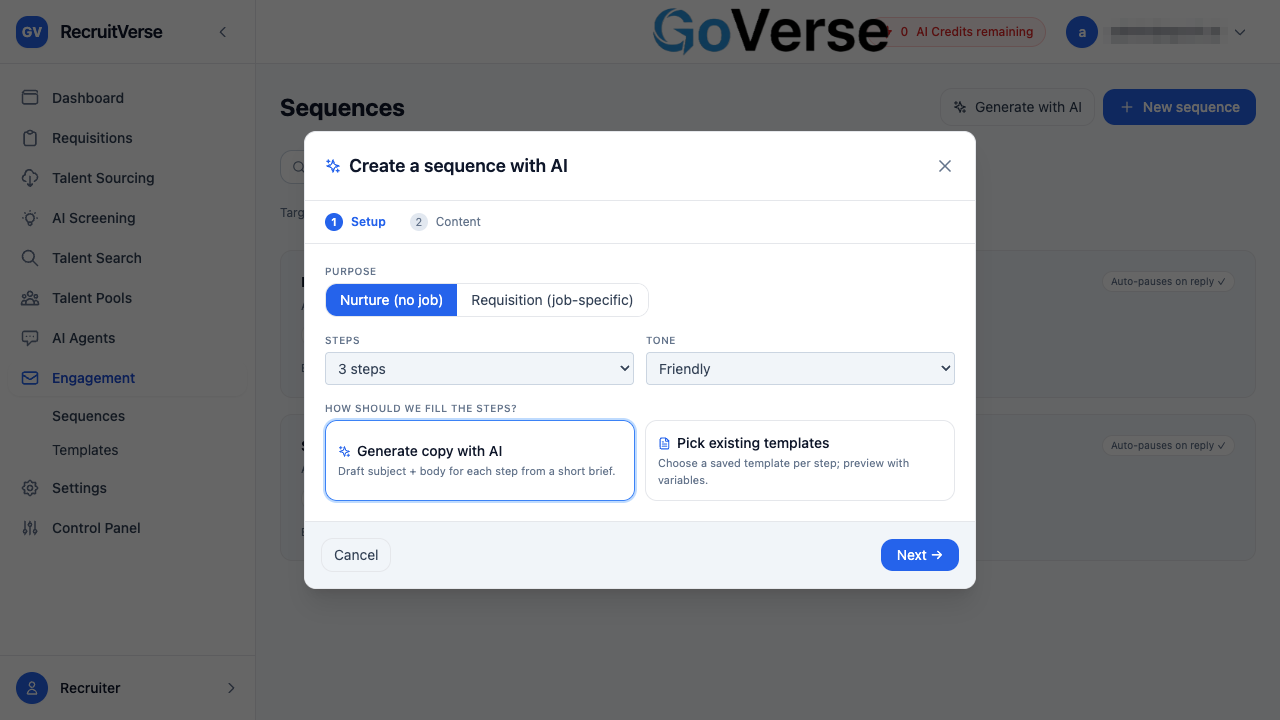
Choose how the sequence should be built:
- Purpose — Nurture (no specific job) or Requisition (job-specific). If you
pick Requisition, a requisition picker appears and is required — this is
what lets the copy use job variables like
{{job_title}}and{{requisition_link}}. - Steps — how many emails in the sequence (1–7).
- Tone — Friendly, Formal, or Concise.
- How should we fill the steps?
- Generate copy with AI — the AI drafts a subject + body for every step.
- Pick existing templates — you choose a saved template for each step.
Select Next →.
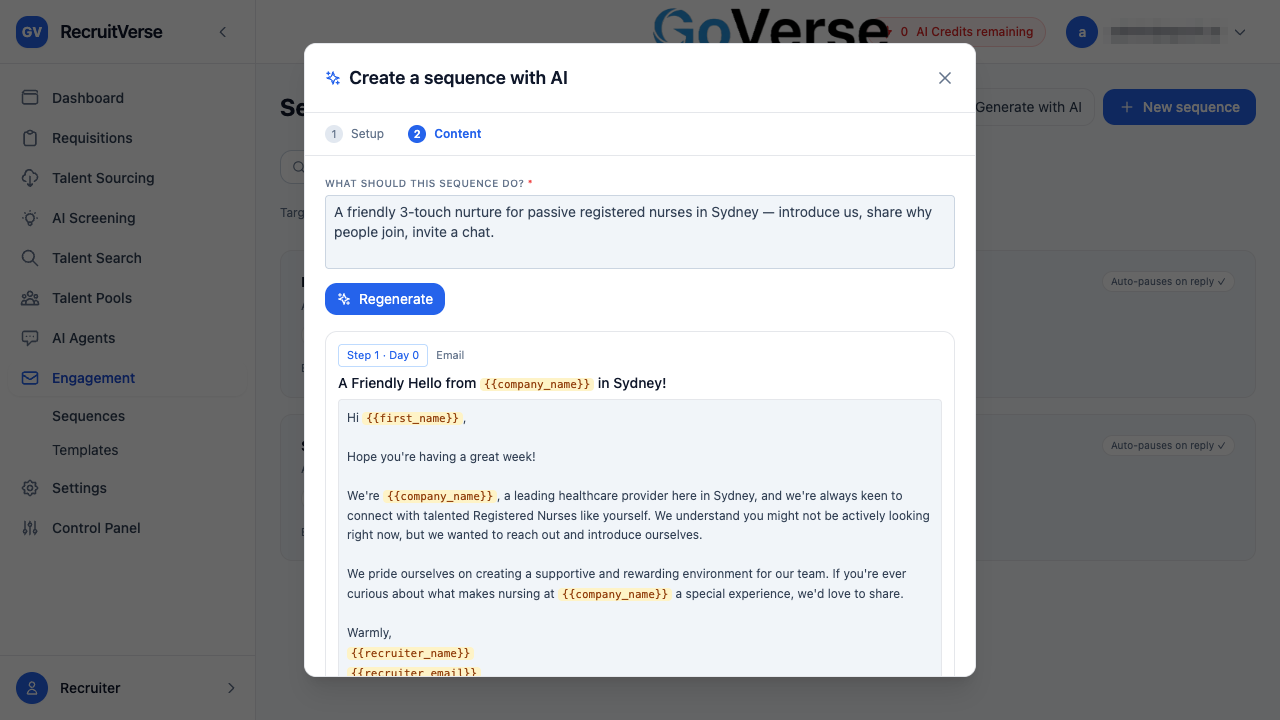
3. Step 2 — Content
Describe what the sequence should do in the brief box, then select Generate. The AI returns a subject + body for each step, with merge variables highlighted. Use Regenerate to try again with a tweaked brief. When you're happy, select Open in editor →.
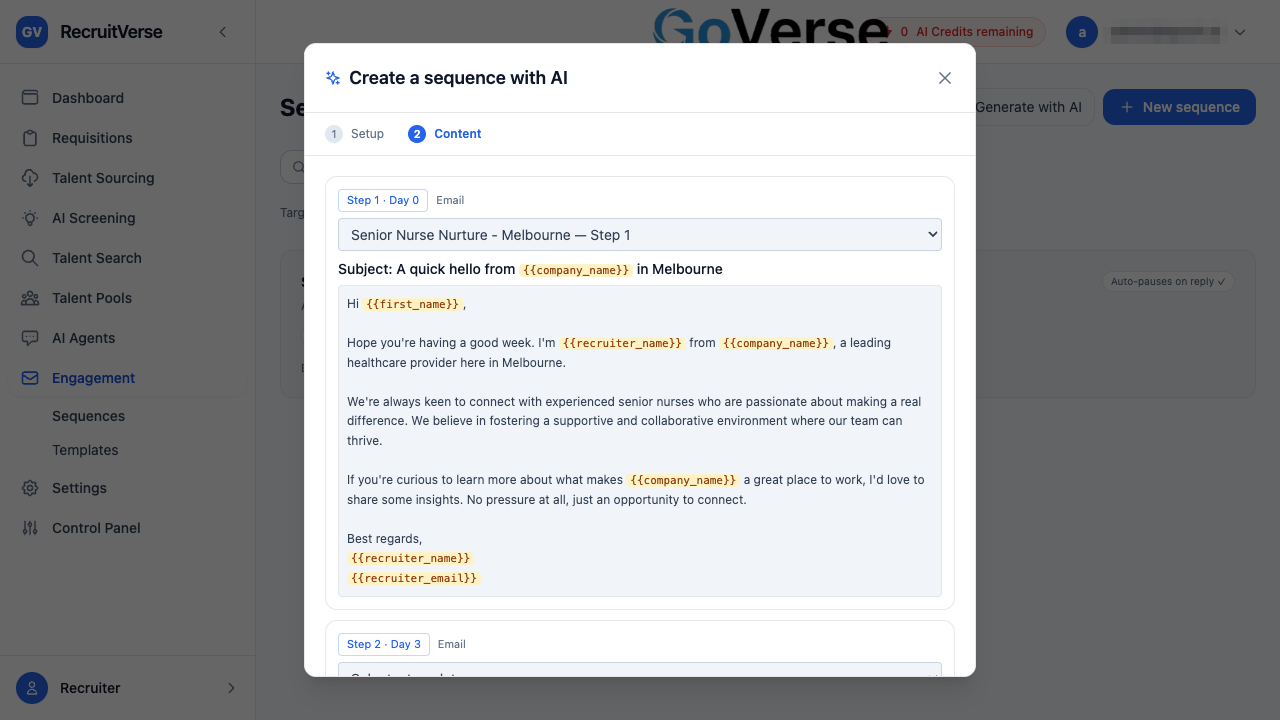
Choose a template from the dropdown for each step. The selected template's subject and body are shown with merge variables highlighted so you can confirm the content before continuing. When every step has a template, select Open in editor →.
4. Review in the editor
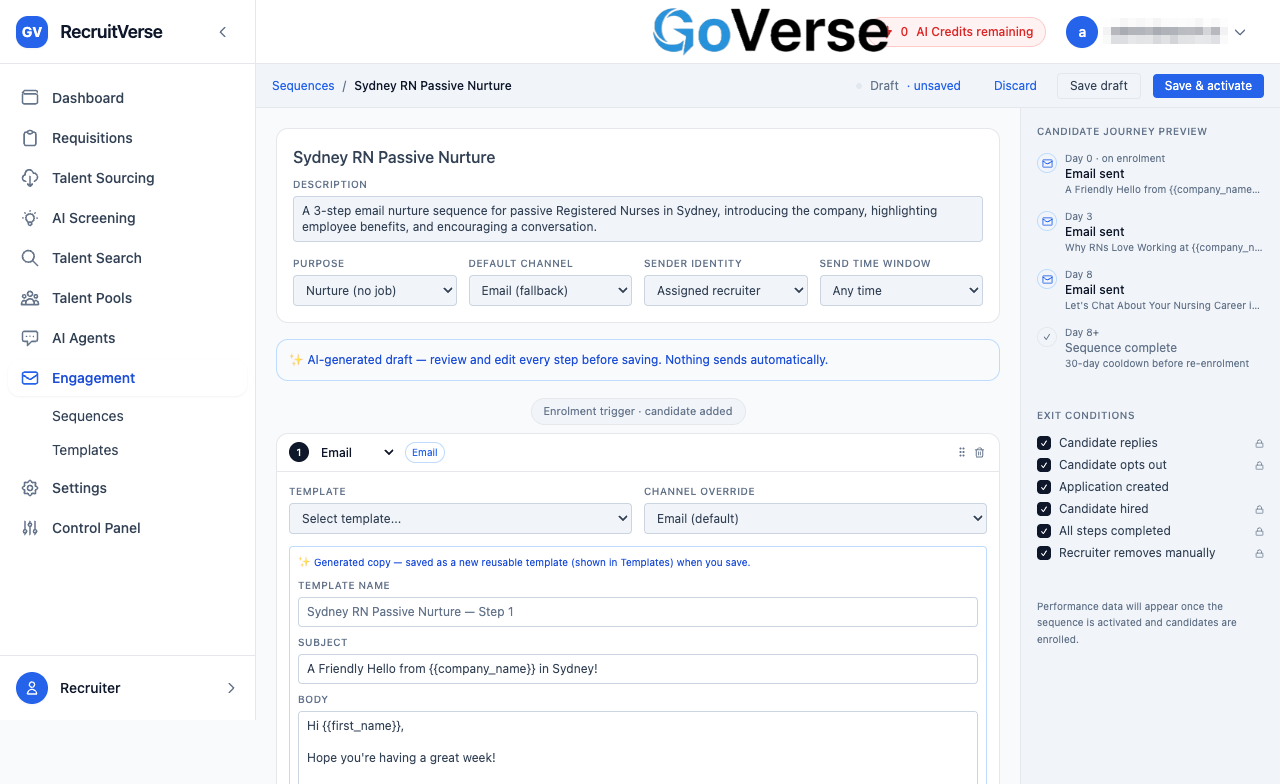
The wizard drops you into the normal Sequence Editor with the draft pre-filled (name, description, purpose, steps and cadence).
- For generated steps, each step shows an editable Template name, Subject and Body. Edit them freely. The name defaults to "<sequence name> — Step N" — change it to something you'll recognise.
- For picked steps, the chosen template is already selected on the step.
- The right-hand Candidate journey preview shows the send day and subject for each step.
5. Save
Select Save draft (or Save & activate). On save:
- Every generated step's copy is saved as a new reusable template (using the name you set) under Engagement → Templates.
- The sequence step then references that template by id — the copy is not duplicated inside the sequence. This matches how manually-built sequences work: the template is the single source of truth, and it's rendered with the candidate/account variables at send time.
Your new sequence appears in the Sequences list as a draft. Activate it and enrol candidates when you're ready (for a requisition sequence you'll pick the requisition at enrolment).
Notes & tips
- AI credits: the Generate copy with AI option consumes AI credits (per seat). If you're out of credits you'll see a clear "out of AI credits" message instead of generated copy — the Pick existing templates option does not use credits.
- Variables: generated copy only uses variables valid for the purpose. Nurture
copy can't use job variables (
{{job_title}},{{requisition_link}}); those are requisition-only and resolve at send once an enrolment is tied to a requisition. - Nothing auto-sends: the wizard always produces a reviewable draft. Sending only happens after you activate and enrol candidates.
- Editing later: the templates it creates are normal templates — edit or reuse them anytime from Engagement → Templates.