Talent Sourcing
Menu: Talent Sourcing → Sourcing Batches · Available on every plan
Talent Sourcing is how candidates get into GoVerse. You upload CVs — one at a time or a whole folder at once — and GoVerse reads each one with AI, pulls out the important details, and turns it into a structured candidate profile. Those profiles then become searchable across the rest of the platform, so you can find, screen, and pool the people you've sourced.
Every upload you do is grouped into a Sourcing Batch — a named collection of CVs you can track from start to finish.
What it's for
- Bring candidates into GoVerse — upload resumes so they become profiles you can work with.
- Process CVs in bulk — drop in an entire folder (say, everything you collected at a career fair) instead of adding people one by one.
- Track progress — watch each batch as GoVerse reads and processes every CV, and see exactly which ones succeeded and which need attention.
- Turn resumes into searchable profiles — completed CVs become candidate profiles that show up in Talent Search, AI Screening, and Talent Pools.
Upload limits depend on your plan
The number of resumes you can upload each month varies by plan. Higher-volume bulk uploads require a plan that includes bulk operations. See Plans & feature access for the exact monthly limits on your plan.
How to get there
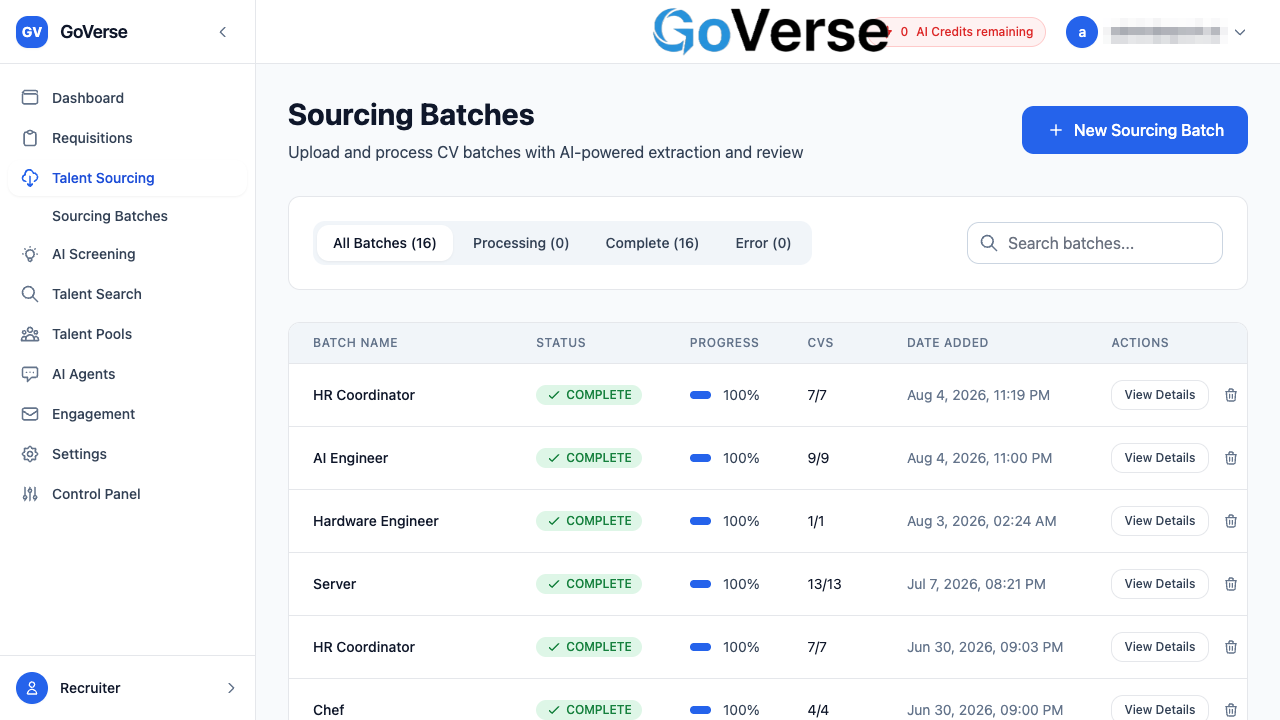
Select Talent Sourcing in the left menu, then Sourcing Batches. This opens your batches list — the home base for all sourcing work.
Uploading CVs
Everything starts with the New Sourcing Batch button at the top-right of the Sourcing Batches page.
If your account is connected to an ATS (like SmartRecruiters or Workday), clicking it first asks how you want to build the batch:
- Sync from ATS — pull candidates straight from one of your ATS job postings.
- Manual Upload — upload CV files or folders from your own computer.
If you don't have an ATS connected, the button takes you straight to manual upload.
Manual upload — the Create New Sourcing Batch page
The upload page has two things to fill in: a batch name and your files.
- Name the batch. Give it something you'll recognise later, for example University Career Fair '25. This is how the batch is labelled in your list.
- Add your CVs. Drag and drop files or a whole folder onto the drop zone, or
use the buttons:
- Browse Folder — pick an entire folder; GoVerse pulls the CVs out of it (including files inside sub-folders).
- Browse Files — pick individual files.
- Start the upload. Once the batch has a name and at least one valid file, the Start Upload button becomes active. Click it, and GoVerse takes you straight to that batch's status page to watch it process.
Use Browse Files and pick one resume. It's added to the file list, ready to upload. Perfect for adding a single candidate you just received.
Use Browse Folder (or drag a folder onto the drop zone) to add many CVs at once. GoVerse walks through the folder, picks up every supported CV, and adds them all to one batch. This is the fast way to load a large stack of resumes.
Tip
Bulk uploads count toward your monthly upload limit and, for larger volumes, need a plan that includes bulk operations. Check Plans & feature access.
Accepted formats and size
| Requirement | Details |
|---|---|
| File types | PDF and DOCX (Word) only |
| Maximum file size | 10 MB per file |
If you add a file that isn't a PDF or DOCX, GoVerse flags it in the list as unsupported and won't let you start the upload until you remove it. You'll see a message like "Please remove the unsupported files from the list to enable start upload." Just click the ✕ next to any flagged file to take it out.
What the AI produces from each CV
Once uploaded, GoVerse reads each resume and builds a structured candidate profile from it. From the raw document it extracts and organises:
- Contact details — first name, last name, and email.
- Work experience — job history laid out consistently (title, company, dates, responsibilities).
- Education — schools, degrees, and qualifications.
- Skills — tidied into a standard, consistent form so similar skills match.
- Certifications — professional accreditations identified and structured.
- Expertise signals — scores that indicate how strong the candidate is in different areas.
This is why an uploaded PDF becomes something you can actually search and screen — GoVerse turns unstructured resume text into clean, comparable data.
The Sourcing Batches list
The Sourcing Batches page lists every batch you've created, newest work at your fingertips. For each batch you can see its name, status, a progress bar, how many CVs it holds (processed out of total), and when it was added.
Finding a batch:
- Filter tabs — switch between All, Processing, Complete, and Error. Each tab shows a count so you can see at a glance how many batches are in each state.
- Search — type in the Search batches… box to find a batch by name.
Opening a batch: click any row (or its View Details button) to open the batch status page.
Deleting a batch: use the trash icon on a batch row. GoVerse asks you to confirm, because deleting a batch permanently removes all candidates and screening data associated with it. This can't be undone.
Deleting a batch is permanent
Removing a batch also removes the candidate profiles and screening history that came from it. If you only want to remove one candidate, open the batch and delete that individual instead.
Batch statuses
A batch moves through a few states as GoVerse works on it. In the list, statuses are shown simply as Processing, Complete, or Error:
| Status | What it means | What to do |
|---|---|---|
| Processing | GoVerse is still reading and processing the CVs in this batch. The progress bar and the "processed / total" count climb as it works. | Nothing — just wait. The page updates on its own. |
| Complete | Every CV in the batch has finished processing. | Open the batch to review the resulting candidate profiles. |
| Error | The batch as a whole failed to process. | Open the batch to read the error message and details, then try again. |
Live updates
While a batch is processing, its status page refreshes automatically every few seconds — you don't need to reload the page to see progress.
Inside a batch — the status page
Opening a batch shows everything about that upload run in one place.
At the top, a summary card shows the batch name, its current status, when it was created, last updated, and (once done) completed.
Processing Status gives you the headline numbers plus a progress bar:
| Metric | Meaning |
|---|---|
| Total Applicants | How many CVs are in the batch |
| Processed | How many have been worked through so far |
| Completed | How many finished successfully and became profiles |
| Failed | How many couldn't be processed |
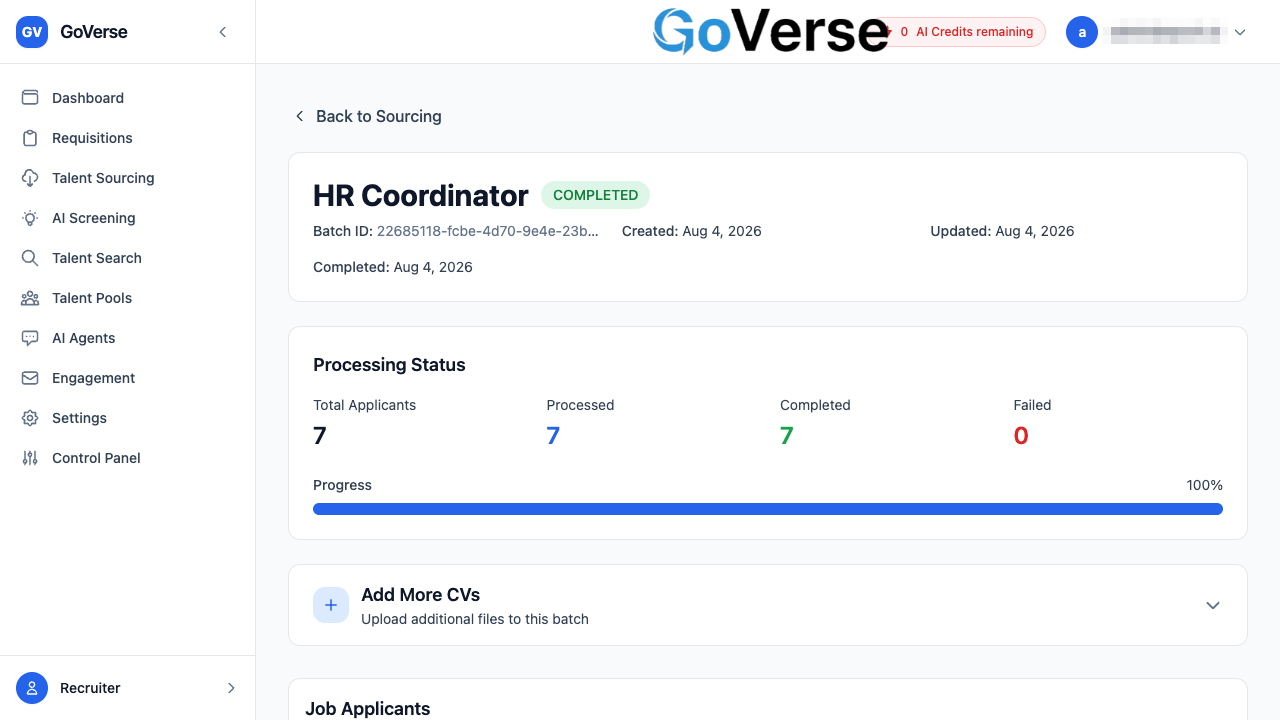
Job Applicants lists every individual CV in the batch and its own status, so you can see file-by-file exactly what happened.
Individual CV statuses
Each file in the batch carries its own status:
| Status | Meaning |
|---|---|
| Queued | Waiting in line to be processed |
| Processing | Currently being read and enriched by GoVerse |
| Completed | Successfully turned into a candidate profile |
| Failed | Couldn't be processed (the reason is shown next to the file) |
For a Completed CV, you get action buttons to:
- View Profile — open the candidate's full profile.
- Download CV — download the original resume file.
- Delete Profile — remove that candidate.
For a Failed, Queued, or Processing file, you can remove the record from the batch.
Adding more CVs to an existing batch
You don't have to get everything in on the first go. On the batch status page, expand the Add More CVs panel to drop in additional files or folders. They're processed and added to the same batch — same format rules apply (PDF/DOCX, up to 10 MB each).
Handling failures
A failure doesn't stop the rest of the batch — the CVs that can be processed still go through. When something goes wrong:
- A single CV failed. Look at the failed row in the Job Applicants list — the reason appears right there (for example, a corrupt or unreadable file). Fix or re-export the file and add it again using Add More CVs, then remove the failed record.
- The whole batch failed. The status page shows a red error box with a plain-language message, an expandable View Error Details section, and an error code. If it isn't clear how to resolve it, share the error code with your GoVerse contact.
Most single-file failures are the file itself
Password-protected PDFs, scanned images with no selectable text, or files that aren't really PDF/DOCX are the usual culprits. Re-saving or re-exporting the resume and re-uploading usually fixes it.
How sourced candidates become searchable profiles
This is the payoff of sourcing. When a CV reaches Completed, GoVerse has already:
- Read the document and pulled out its sections (experience, education, skills, contact info).
- Cleaned and standardised the details so they're consistent with everyone else's.
- Indexed the profile for search, so it can be matched by meaning — not just exact keywords.
From that point on, the candidate is a first-class profile in GoVerse. You can:
- Find them in Talent Search.
- Rank them against a role in AI Screening.
- Add them to a Talent Pool.
In other words: sourcing is the front door, and every completed CV walks through it to become a candidate you can act on across the whole platform.
Related
- AI Screening — rank your sourced candidates against a role.
- Talent Search — find sourced candidates by skills and background.
- Talent Pools — group candidates for ongoing engagement.
- Plans & feature access — monthly upload limits and which plans include bulk operations.